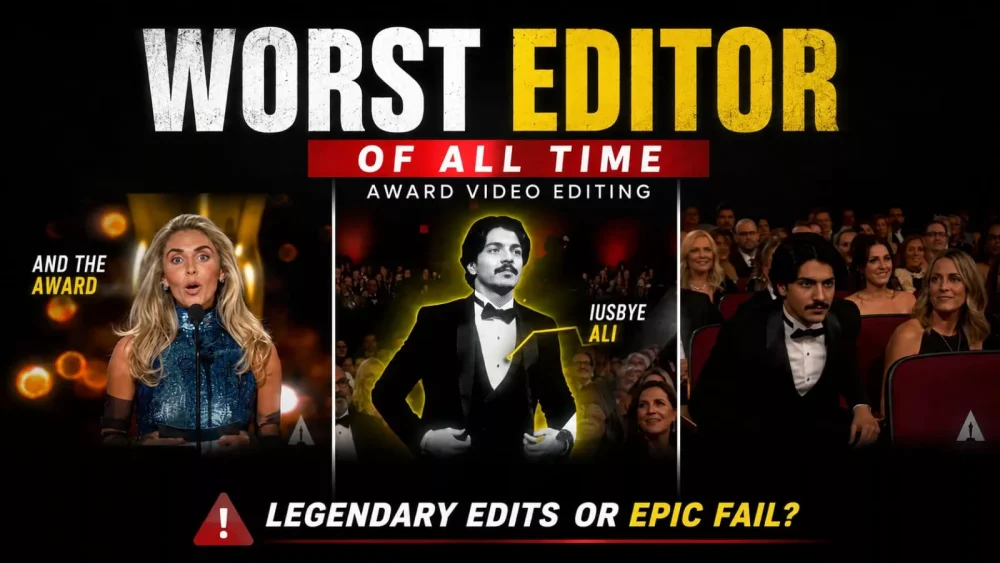
Worst Editor Of All Time Award Ai Video Editing – You might have noticed a new trend on Instagram where people are creating content using a specific “editor” style—featuring “Worst Editor” versus “Best Editor” themes. You, too, can create this kind of viral content. In this article, we will discuss the steps involved, how to easily create these videos, and which style is likely to go viral. We will cover both variations—”Worst Editor” and “Best Editor”—and help you decide which one to create for the best results. Please read the article carefully to ensure you achieve the best outcome.
Details Of Worst Editor Of All Time Award Ai Video Editing
Let’s first understand what happens in the setup. You see something in the editing that draws people in these days. It starts with an audience and a stage where an announcer declares, “The ‘Worst Editor’ award goes to…” and calls out your name. People really enjoy this because it portrays you as the “worst” editor, but then the scene is customized; it reveals that you are actually the best editor, and your video is showcased. You walk up and speak, and while the editing sequence concludes, the way your name appears in the middle adds an attractive, “attitude-filled” vibe—and that is exactly what I am going to explain.
Process Of This Video Editing?
Let me explain the process for creating the video. First, I have provided a prompt here that works for both photos and videos. Start by taking a reference photo—specifically one showing your face—and uploading it to ChatGPT along with the prompt. When you generate the output, your face will replace the one in the original image, resulting in a high-quality picture that you can save. Now, I will also explain how to create the video from there.
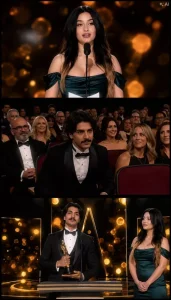
Photo prompt:- Main male character ko replace karo 2nd image se with proper proportion of body and ladki ko same rahne do. aur image same format me generate karna, and jada warm tone maat dalna . Aur face and body ka tone fair rakho sabka
Video Prompt –
Use the uploaded 3-panel awards ceremony image as the reference. Keep the same people, faces, outfits, stage, lighting, audience, and camera style throughout. Start with the first panel: the female presenter stands at the microphone, looks toward the audience, and clearly says, "And the Worst Editor Award goes to Sudhanshu." Cut to the second panel where the young man in the tuxedo looks surprised, smiles slightly, and stands up naturally from his seat while the audience applauds. Transition to the third panel: the man walks to the podium holding the Oscar-style trophy. The female presenter gracefully steps out of the frame toward the right edge, leaving him alone at the microphone. The man smiles confidently at the audience and says, "Thank you." Maintain perfect lip-sync, realistic facial expressions, smooth cinematic camera movements, natural body motion, consistent identities, and a luxurious awards-show atmosphere. Duration 10–12 seconds.
How To Generate Video?
To create the video, visit the Flow AI website (I have provided the link here) and select the “Create Video” option. Once there, sign up and start a new project. Click the plus (+) icon to upload the reference image you just generated. Next, paste the video prompt I have provided. After pasting it, you will see the “Generate” option; simply click it, and the tool will create your final video. You will get excellent results.
How do you give this video the final touch?
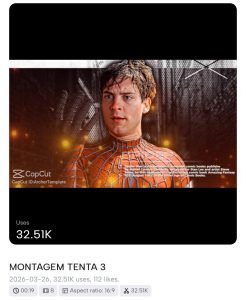
Let me explain. First, save the video you have prepared, and then import it into CapCut. Navigate to the specific moment where the announcement is made and your face appears—specifically, the point where you are sitting on the chair—and create a “freeze frame” of that shot. Save this freeze frame. Next, go to the templates section; I have made this template available on my website, so you can use it there as well. Search for “montegam tenta 3” in the templates option, select any of the templates, add the freeze-frame clip you created, and click “Next.” Customize the text as needed, let the app generate the video, and save it. Then, return to the original project you started earlier. Replace the freeze-frame layer with the new video you just created using the template, and finally, adjust the audio.