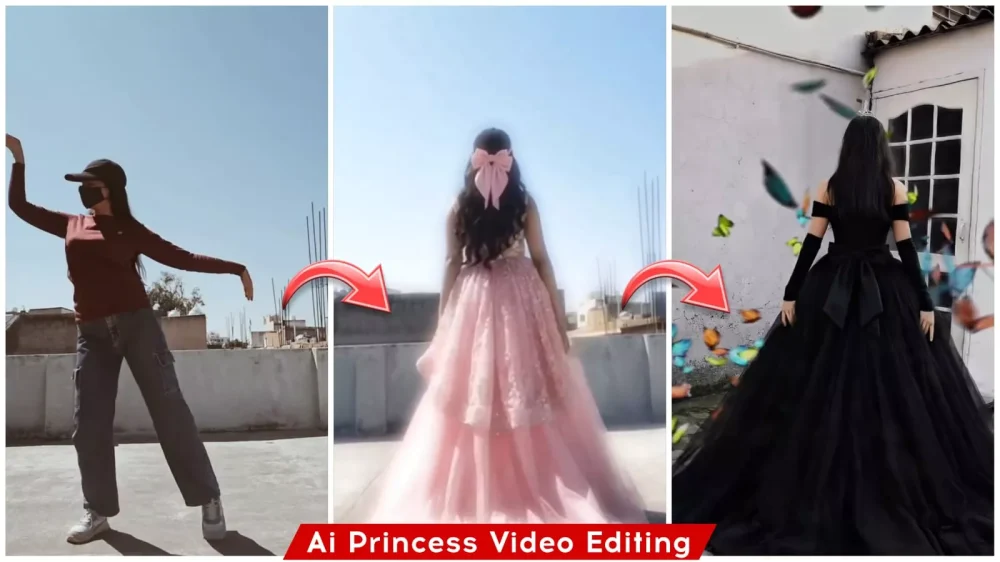
Princess Girl Ai Video Editing Prompt – New trends are constantly emerging on social media. Currently, one of the most viral trends making the rounds is the “AI Princess” trend. In this trend, an ordinary video of a girl is transformed to convert her appearance into that of a princess—much like the princesses you see in fantasy stories. If you are interested in learning the step-by-step process—specifically, how to execute this transformation and convert it into a video—then this article is for you. Every single section of this article will be highly valuable to you. If you have even the slightest interest, be sure to follow along. I will guide you through everything—what the final video looks like. How to create it, and exactly how to edit it.
Details Of Princess Girl Ai Video Editing Prompt
Now, let me tell you about this trend—specifically, what kind of content it involves and what type of editing you can expect to see. To begin with, your video is displayed in a completely standard, normal format. Subsequently, it undergoes a transformation; your footage shifts from its original state and converts into a “Prince Look” aesthetic. This outcome depends entirely on your initial recording. If you capture a high-quality base video, the AI will then be able to generate that specific style of video for you. Let me walk you through the exact steps you need to follow. First, you require an image, which you then convert into the “Prince Look” style. Following that, you transform that image into a video sequence. So, let’s break down this entire process step-by-step so you can understand exactly how it works and which tools are utilized.
How We Need To Record The Video
Now, let’s understand exactly how we need to record the video here. This article is intended specifically for girls; it is not meant for boys. Go ahead and record your video. You should record yourself walking forward in your regular clothes. The recording should capture your back profile as you walk; simply record a clip lasting about two to four seconds as you move along. Next, you need to extract a screenshot from that video clip. This screenshot must be taken from the very last frame—the exact moment where the video ends. The reason for this is that using a screenshot of the final frame will ensure a seamless transition later on, preventing any issues when merging the video clips. I will explain exactly where this merging process takes place further on.

Image Prompt –
Turn the girl in the image into a royal princess seen from the back. Keep the same pose and the same place near the doorway looking outside.
Change the outfit into a long, elegant royal princess gown or lehenga with a flowing trail. The dress must be [COLOR] only, with a silky, luxurious and slightly shiny look.                                                        Add a soft glowing light from both sides of the dress to create a gentle glow. Keep the surroundings natural and cinematic, with soft daylight coming from outside the doorway for a dreamy atmosphere.                                                                          Ensure realistic proportions, natural shadows, detailed fabric texture, and cinematic lighting for a high-quality photorealistic image.
Video Prompt –
Create a cinematic video of the same girl as a royal princess from the back view.                                                            Keep the camera angle and framing exactly the same as the original image. Do not change the background — the hallway, doorway, walls, lighting and environment must remain identical.
The girl wears a long elegant royal princess gown with a flowing trail and a delicate crown.                                                  She gracefully walks forward toward the doorway. Her movement should be smooth and natural, with slight slow motion while the gown gently flows.
Style: cinematic look, realistic lighting, dreamy royal aesthetic, smooth motion.
How To Create Ai Image
Now, immediately after taking the screenshot, you need to open Google Gemini. I have provided a prompt within the article specifically for creating an image; please copy it. First, paste that prompt into Google Gemini. For the model selection within Gemini, ensure you choose the ‘Pro’ model. Next, tap on the plus (+) icon to upload the screenshot you previously captured, and then hit ‘Generate.’ Your screenshot will then be transformed into an image of a princess-like girl. Finally, be sure to save the photo that is generated.
How To Generate Your Video Using Photo
To create the video, a video prompt has already been provided, and you will also find a “Create Video” option located below. As soon as you click on it, you will be redirected to Grok—a specific website. If you are using the mobile application instead, you must follow the exact same process: select the “Create Video” option. Next, click on the “Media” option located at the bottom, and from there, select the “Animate Photo” feature. You should then upload the specific photo that you previously generated using Gemini. Following this, paste your video prompt and initiate the generation process; the system will display a progress counter ranging from 1 to 100. Within just a few seconds, your video will be ready for you to save.
How To Create Final Video
For the final editing stage, you need to join your video clips together—specifically, the original video from which you took the screenshot, combined with the new video you just generated. Insert a smooth transition between them. If the two clips merge seamlessly without any visual mismatch, there is no need to add a transition; however, if they do not merge smoothly, you should add a transition at that point.