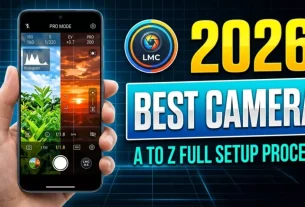
Black Magic Camera – In today’s world, creating videos is a dream for every content creator. If you aspire to produce high-quality videos, you require a sophisticated video editing application—and, most importantly, a good camera. However, I am not referring to the standard DSLR cameras you might typically use. Instead, I will show you how you can record professional-grade videos even if you only possess a standard camera. In this article, I will explain exactly what the Blackmagic Camera app is, how to use it, what the optimal settings are, and how to shoot videos with it. This serves as a comprehensive guide that will prove incredibly useful for users of all skill levels—from beginners to advanced creators. Reading this article will undoubtedly be highly beneficial for you.
What is the Black Magic Camera?
It is a professional video recording camera app that allows you to capture videos of a quality far superior to standard recording. It delivers a DSLR-like aesthetic directly on your mobile device. Within this app, you will find a multitude of options—including ISO, shutter speed, white balance, frame rate, focus controls, and much more—features you may never have even imagined were possible.
Features and Benefits:
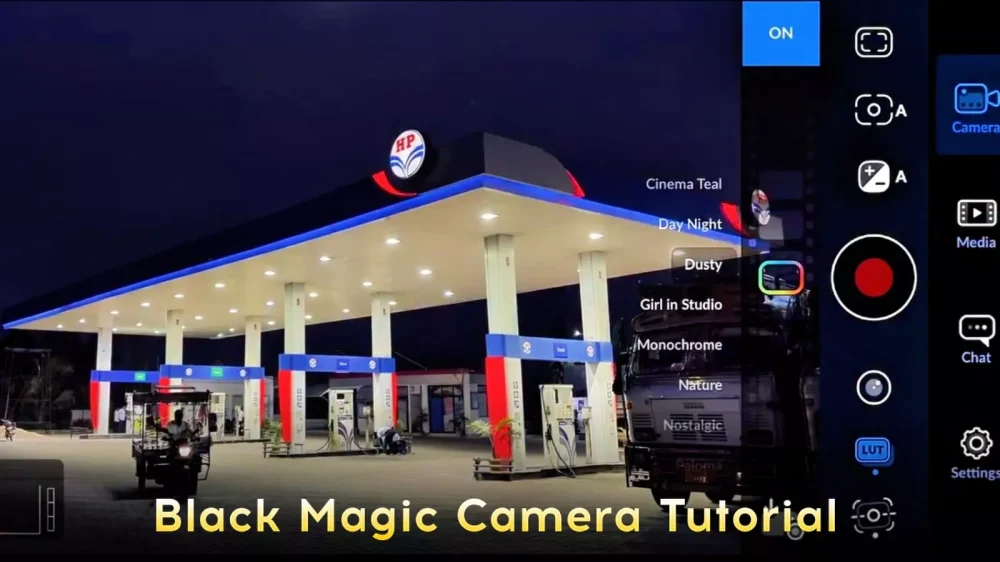
Look, what you get here is a truly professional experience. Every setting comes with its own dedicated control, allowing you to adjust it manually. It offers top-notch options for high-quality recording, enabling you to shoot 4K videos—even on a standard smartphone. You can record in RAW format, capture footage using a Log profile, and apply cinematic looks. As for color grading, you can perform it in real-time—directly within your video feed. There is no need to record the video first and then grade it later; you can instantly apply various LUTs to your footage right there to see which look works best. And the best part of all? It is completely free—though there are a few conditions involved, which I will explain further on.
How you can record your videos using this tool?
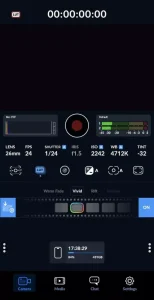
First, once you have installed the application, simply open it. It will then prompt you to grant certain permissions; please proceed to grant them. You will now find yourself in a Portrait Mode interface, where you can view all the details and settings in a comprehensive layout—including the ability to monitor your audio in real-time. Next, you will come across a specific option—relevant to the color grading feature I mentioned earlier—labeled “LUTs.” When you access this section, you will discover a wide variety of different LUTs available. To apply one, simply tap on it, and it will be instantly applied to your video footage. This allows you to record your standard videos in a completely professional manner, giving them a distinct color aesthetic of your choice. Additionally, you will find options to select video quality and access a host of other features—the full list of which would be quite extensive if I were to detail them all here. I encourage you to give it a try yourself and share your experience with us!
How To Import Luts In Camera ?
Let me explain that the primary focus of the content here revolves around color grading. I’ll show you that if you wish to color grade your videos and already possess some standard LUTs, I will guide you on how to add custom LUTs to this application. Upon opening the app, you will be presented directly with the camera interface. At the bottom of the screen, you will find options for Media, Chat, and Settings. Click on the Settings option, then scroll down slightly. Within the system settings, navigate to the Media section. Directly beneath that, you will find the LUTs option—specifically labeled “LUTs Manager.” Click on it, and you will then see options to import and export your LUTs. Select “Import LUT,” and from there, you can import as many LUTs as you desire. Of course, you must already have these LUT files saved on your device beforehand. I recommend checking out our website; I have already provided a wide variety of LUTs specifically designed for video editing. By utilizing these resources, you can significantly enhance the color grading of your videos.
What Is Our Focus In This Article ?
This article focuses on cameras; however, rather than covering every general aspect, I have placed a special emphasis on color grading. Specifically, I have explained how to utilize the built-in LUTs (Look-Up Tables) available within the camera for color grading purposes. I have detailed the entire process of using these features, along with providing various other technical details regarding the camera, within this article. You can now effectively utilize these tools to enhance your work.