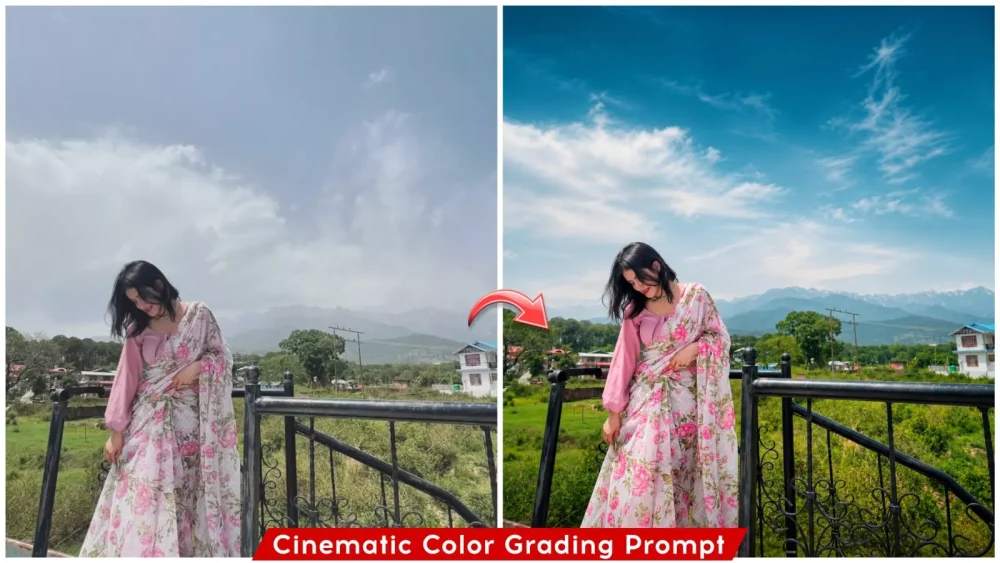
Cinematic Color Grading Ai Photo Prompt – Now, how will you see it on social media? Photos with cinematic color grading are going viral, and you might think of editing them manually. You can edit any photo in a great way, and there’s no need to do anything else. If you follow this simple process, the results are absolutely amazing. And I’ll also guide you step by step on how you can convert your normal photo into a viral photo by adding cinematic color grading. If you want to create these photos, this article gives you all the details step by step. You can create them with them.
Details Of Cinematic Color Grading Ai Photo Prompt
What is cinematic color grading? It is a photo-editing technique in which elements like color, contrast, and highlights are adjusted in a perfectly balanced way. This gives the photo a professional, cinematic appearance—the kind of color tones you often notice when watching films or web series. You can achieve a similar look in your own photos by using specific prompts. We will discuss what these prompts are, where to use them, and the correct way to apply them.
Process Of This Photo Editing
If you want to create a professional-looking image using ChatGPT, it’s quite simple these days—it’s no longer a difficult task. You can easily accomplish this without needing any manual adjustments; the process is entirely automated. You just need to use the right prompt. The advantage is that you can transform any photo into a completely unique style, while the colors remain perfectly tailored to your original image—they don’t just appear as random, arbitrary colors; instead, they are adjusted in a natural, cohesive way.
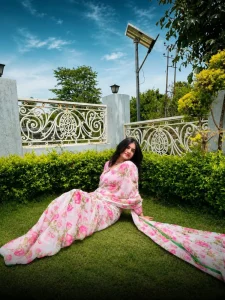
Apply premium Teal & Warm cinematic grading inspired by wedding photography. Create rich, vibrant colors, subtle teal shadows, deep greens and warm golden highlights. Enhance color depth and contrast. Keep blacks detailed, highlights soft, whites clean and skin tones realistic. Avoid oversaturation. Adapt grading to each photo’s lighting.
STRICTLY PRESERVE every person’s exact face, identity, features, expression, skin texture, body, hair, clothes, jewellery and pose. Do not retouch, smooth, reshape or regenerate faces. Do not add, remove or change any person, object, clothing or background. Preserve original composition, framing, perspective and details. ONLY adjust color, white balance, exposure, contrast, highlights, shadows, vibrance and saturation. No generative edits. Deliver a rich, professional DSLR-quality photo. Premium finish.
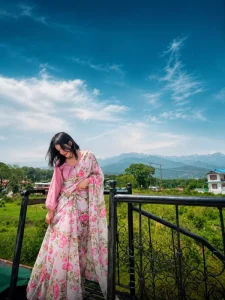
Apply realistic cinematic colour grading to the original photo. Create a beautiful deep teal-blue sky with soft white glowing haze and a smooth faded white glow near the horizon. Add subtle atmospheric mist over the distant mountains, cool teal-blue shadows, natural deep green forest tones, and soft cinematic contrast. Apply a smooth black fade making from the bottom, gradually darkening the foreground rocks and grass with a natural feathered transition. Keep the upper sky bright, dreamy, and softly glowing while maintaining rich details in the landscape. Enhance resolution, clarity, and fine details for a professional DSLR quality look.
Preserve the exact original subject, face, hair, pose, hands, clothes, body proportions, and composition. Keep natural textures and realistic colours. No AI look, no face regeneration, no artificial skin smoothing, no oversaturation, no HDR, no distortion, no excessive sharpening, and no fake lighting. Make the final image look like a real cinematic.
How can you complete your photo editing using ChatGPT?
First, if you are using ChatGPT for the first time, you will need to sign up. After that, select the original photo you want to edit—ideally, one where you have already adjusted the basic elements to your liking. Next, to enhance the colors, you can use specific prompts. Simply put, upload your photo, copy the relevant prompt, paste it into the chat, and hit ‘generate.’ Once done, wait a few moments, and you will see your photo transformed into an improved version. As a result, you’ll get some really great results!
Conclusion
In cinematic color grading, skin tones can sometimes end up looking too dark. To ensure they remain natural, you can include a specific instruction—or “prompt”—that states the skin tones should be kept accurate and left unchanged. Adding this instruction will ensure the skin tones appear perfect. While I have already incorporated this, you may find this information useful when editing other videos or photos on your own.