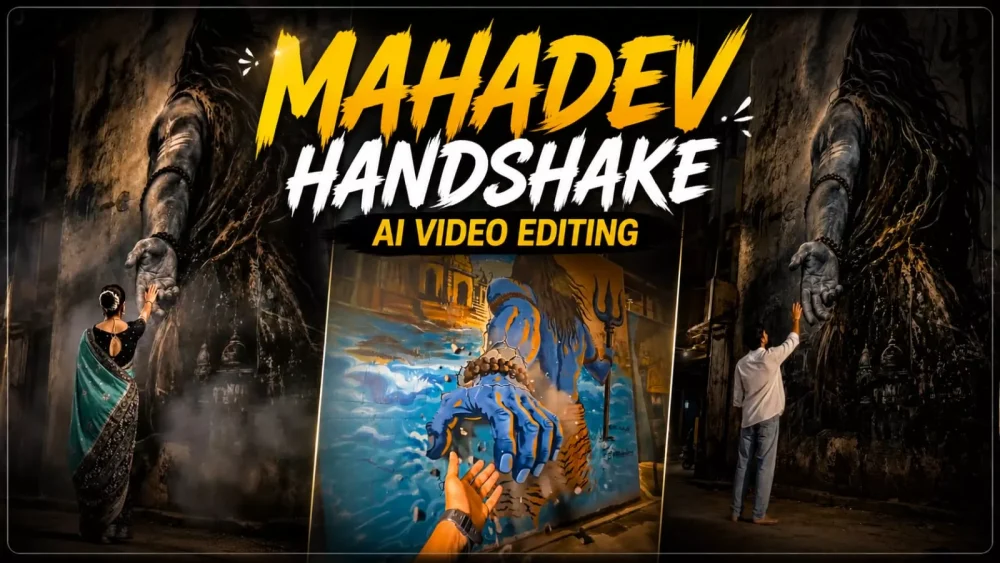
Mahadev Handshake Ai video Editing Prompt – If you check Instagram right now, videos showing a handshake with a deity are going viral, and everyone is creating them. In this article, I will explain how you can create this viral video. I will show you how to make it in two steps; if you follow them correctly, you will end up with a perfect image featuring your own face. I will outline all the steps and explain how you can create this content and potentially go viral.
Details Of Mahadev Handshake Ai video Editing Prompt
First, let’s fully understand the concept of this video. It starts by showing a photo where you are standing, and Lord Shiva’s hand is positioned behind you—appearing as if it is reaching out from the background. The video then transforms the image so that you appear to be shaking hands with Him; the result is truly amazing and looks incredibly realistic. It garnered over 2 million likes on Instagram, so I decided to share it with you. To create this, you need to follow two steps: first, creating the image, and second, creating the video. I will explain both steps so you can create it properly.
Editing Process Of This Video Edit
Let’s understand the process of creating the image, as that is the first step. Keep in mind that when creating this type of image, you need to use a full-body photo of yourself. The photo quality must be high—ideally HD—and your face should be clearly visible. Next, upload the photo to ChatGPT; you will find a ‘plus’ (+) option there. Click on it to upload your photo, then paste the image prompt provided on our website. Finally, click the ‘Generate’ button. This will create an image like the one shown earlier. Now, let’s move on to how to create the video.
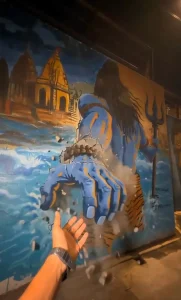
Use uploaded photo for exact face & outfit (no changes). Ultra-realistic DSLR night shot, vertical 9:16, full body. Subject small, bottom-left, side/back profile, camera slightly behind, looking up. Huge Lord Shiva mural on old wall (back view, long hair, trishul), painted style but realistic. COLOR & LIGHTING (MOST IMPORTANT): Warm orange sodium streetlights casting golden highlights. Deep blue & teal shadows on wall and skin. Muted cinematic tones (no bright colors). Wet ground reflecting orange light. Soft glow from streetlight (top corner). Dark moody contrast, slightly desaturated. Natural haze + low-light grain. Skin and wall catching warm highlights + cool shadows balance. 3D Shiva hand emerging from wall, same blue tone, realistic shadows. No touch, small gap between hands (spiritual feel). Old Indian alley, dark, cinematic, realistic textures. No glow effects, no fantasy, no CGI — pure real photo look. 8K, ultra-detailed, cinematic, realistic.
Video Prompt –
LOCK ORIGINAL IMAGE: face, outfit, pose, mural, lighting, perspective, framing unchanged. Shiva mural fully static. Only blue-grey hand emerges slowly from wall (3D illusion), minor wrist cracks, light dust fall. Camera: slow forward handheld, very subtle, no shake. Subject still, looking up, natural breathing, slight cloth movement. Raises hand slowly as Shiva hand extends → gap closes. HAND: fingertips touch → visible → Shiva hand gently wraps. Perfect anatomy (5 fingers, correct wrist, no distortion). Emotion: calm, divine, protective. No force, no fast motion. Final: hands fully connected, hold 2s. Env: dark Indian alley, warm streetlights, wet ground, haze, cinematic shadows, muted tones. Style: ultra photorealistic DSLR, real physics, DOF, motion blur, realistic textures. NO: animation, glow, powers, movement in mural, face/outfit change, artifacts, extra fingers. 8s, 9:16
How To Generate AI Video?
We have already provided the link to the Google Flow tool on our website; you can search for it to access the site. First, copy the video prompt from here. Then, open the Google Flow website and sign up. Next, click the plus (+) icon, select “New Project,” and choose the “Image-to-Video” option (it is usually selected by default, but if not, you can change it via the settings option on the right-hand side). After that, click the plus icon to upload your generated photo. Finally, paste the video prompt and hit generate; this will create a professional-quality video for you.
Conclusion
Similarly, you can create another viral video using Instagram’s trading. I’ve explained the details. If you need to understand or create something else, just ask us and we’ll explain it to you in more detail.