Google Gemini Talwinder Ai Photo Editing Prompts – Right now, videos, audio, and songs of big singers are going viral on Instagram, and they’re getting a lot of hype. Everyone is liking them. Even those I don’t know about them are finding out about them. I thought, why not take a look at it from my own perspective and see what they offer. Then I did some research. I discovered that photos of them are going viral. And let me tell you what these photos are. You won’t believe it, so I thought, why not try it? I’ll show you practically how you can create a photo with them by following the steps in this article. They’ll also go viral. Just follow all the steps and create them. You’ll get great results.
Details – Google Gemini Talwinder Ai Photo Editing Prompts
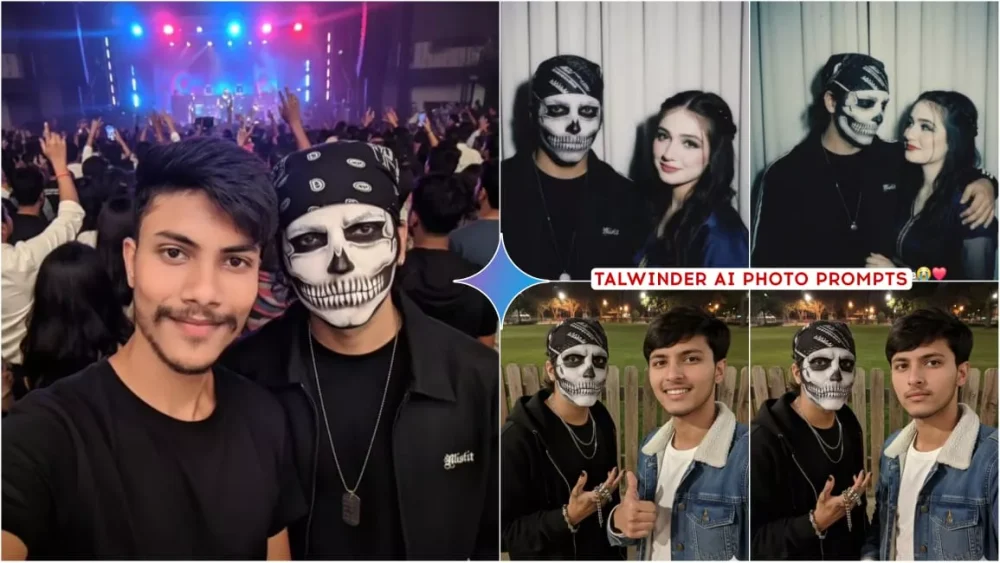
Why is his photo going viral like this? I will tell you. The reason for it going viral is that as you will see, he has got a mask type thing made on his face. It is tattoo type and because of this he looks more interesting. When you see the photo, firstly there will be your selfie along with it. Second there will be his photo and it will not look like you have created it from scratch. I will not let this happen at all. Whatever photos I teach you to create here, you will get to see them all in a completely realistic manner. After seeing them, it will not appear at all like that. Someone has generated them. Here I will show you some photos as an example. Along with that I will also share their prompt and then I will tell you, how to make them?
How To Make Portrait Look In Google Gemini ?
If you want to add a portrait look to Google Gemini, or if you want to add a portrait look to your photo, or make it look a little better, then create your photo as normal. You need to customize it. When you use the prompt, show it: if you want soft light, write in it: “Soft cinematic light.” If you want texture, write there: “Realistic screen texture, no over smoothness.” Now, you’ll also need to add detailing here, such as “Surprise,” and you’ll also need to add the date here: “Blurred background, sharpness.” In this way, you’ll also need to add color balance. If you gradually learn to add these things, you’ll learn to create your own prompt. I’m mentioning this for now because if you don’t want to create exactly the same prompt as the one I’ve provided, you can experiment and add something different to it.

Create a realistic selfie of two men at a live concert with bright stage lights and a crowd in the background.
The first person (user) wears a black T-shirt, and his face, hairstyle, and skin tone must exactly match the reference image, no changes.
The second person (Talwinder) looks exactly like his reference photo, same skeleton makeup, outfit, and accessories.
Both look natural and close together as if taking a selfie.
The image should look ultra-realistic, cinematic, and professionally lit, with both faces 100% matching the references.

--ar 3:4 --v 6 --style realistic --quality 2

"Take a photo taken with a Polaroid camera. The photo should look like an ordinary photograph, without an explicit subject or property. The photo should have a slight blur and a consistent light source, like a flash from a dark room, scattered throughout the photo. Don't change the face. Change the background behind those two people with white curtains. With that boy and me make a cute poses, him smiling looking towards me"

Me taking selfie with Indian singer talwiinder outdoors near a wooden fence with a grassy
park and street lights in the background. Indian singer talwinder on the left and wears a dark zip hoodie over a black shirt. The person on the right (100% same face as uploaded image) wavy short dark hair, a calm expression, and wears a fur denim jacket white t-shirt white apple watch. The photo is shot at arm's length with a phone, slightly wide-angle, night lighting" create imageUse the exact same face as in the
How To Use Google Gemini Talwinder Ai Photo Editing Prompts
Now, it’s crucial for us to explain how to create a photo using the prompt. If you don’t understand this, creating a photo will be difficult. First, select any prompt you like—not just the prompt, but the prompt for the photo you like. For copying, I’ve added a simple button for you to click. It will be copied. After copying, you’ll need to go to Google Gemini. I’ve added a button for that, and let me explain. This isn’t an affiliate link to Google Gemini. I’ve provided it directly for your assistance. You can create your photo by clicking on it and pasting the prompt first. After pasting, go to the “Plus” option and upload your photo. After uploading, you’ll get the “Generate” option. Click on it and click “Generate.” This will create the photo in a few seconds. When your photo is ready, we’ll open it and crop it from the top. Our photo is completely HD.
How To Convert Your Photo Into Video ?
If you want to convert any of your photos into a video, or if you want to create a video of a real estate drive like this, I’ll show you how. You can create one completely free. All you have to do is save the generated photo and then search “flow ai” on Google. Open this website, sign up, and go to “New Project.” There, you’ll find the “Text to Video” option. We don’t want to create a text to video here; we need to go to the “Image to Video” option. Then, select the first image I just saved. Select that. Then, you can do whatever you want to the photo. If you want movement, just type “Add animation in this video,” and a realistic animation will be created in your video.