Flow Ai Secret Codes – You might have noticed a new trend on social media where people use a single prompt to generate photos and videos. By using just one word, you can easily create perfect photos and videos. If you are even slightly interested, you can follow our method to transform your ordinary photos into videos—using just a single word—and produce stunning results that will leave viewers amazed. Let me explain the process and how to create them. If you are interested in learning, follow this article, which will guide you through the process to achieve excellent results.
Details Of Flow Ai Secret Codes
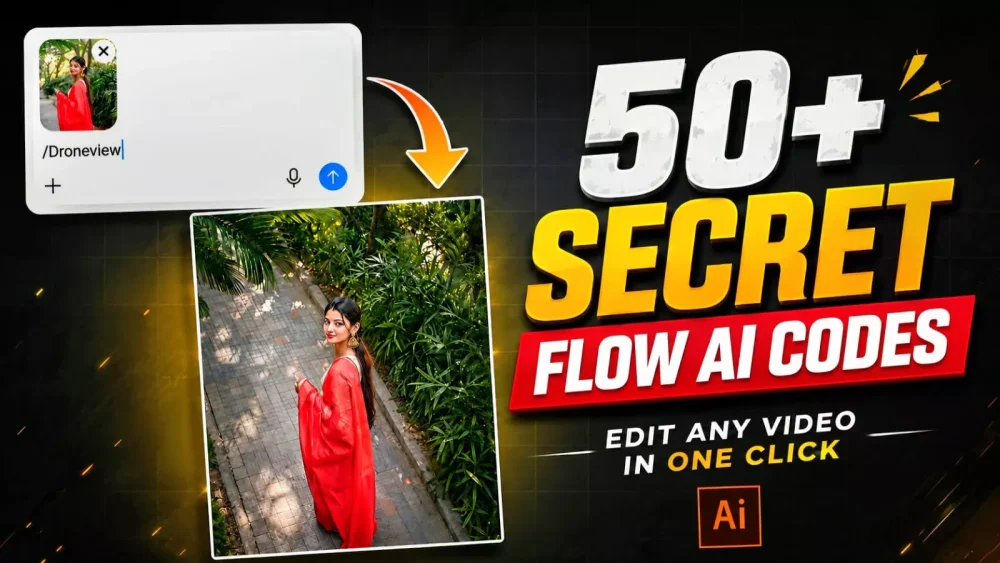
Let’s first understand the editing process. When we upload a normal reference photo, what does it do? It converts the photo into a video. For example, if we upload a photo and simply add a word like “drone view” to it, it easily converts our photo into a drone-like video. This is amazing. You don’t need to do anything else. You simply upload a photo and use the technical words in your photo. I’ve provided some of them here. You just copy and paste them there and click generate, and your photo will be converted into a video in that style. How to do this? If you want to learn about the tools, we’ll explain that in the next step.
We will use Google Flow for this type of editing;
It is a tool you should be familiar with. It allows you to create videos based on your standard photos—it handles both aspects. Let me walk you through the steps. First, visit Google Flow; I have provided the link here, though you can also search for it on Google. Once there, start a new project, click the plus (+) icon, and upload a reference photo. Make sure to upload a full photo to ensure the resulting video is of high quality. Next, go to the prompt input area, type a forward slash (/), and enter “drone view” or “orbit.” Alternatively, you can copy and use the specific prompts provided in the article. Finally, hit generate.
Secret Codes –
/zoom
/zoomout
/zoomin
/dolly
/dollyin
/dollyout
/orbit
/orbit360
/pan
/tilt
/truck
/pedestal
/crane
/drone
/dronefly
/droneorbit
/aerial
/fpv
/fpvdrone
/tracking
/follow
/handheld
/steadicam
/slowmo
/timelapse
/hyperlapse
/speedramp
/motionblur
/shakycam
/pov
/firstperson
/thirdperson
/closeup
/wide
/macro
/rackfocus
/focuspull
/whip
/whip-pan
/spin
/rotation
/bullet-time
/freeze
/loop
/reverse
/morph
/transition
/glitch
/cinematic
/epicshot
What is the most important step here?
The crucial part is the photo you choose to use as a reference. If you don’t use a photo where the subject is clearly visible, the AI won’t be able to generate effective motion, and the final result won’t be good. Therefore, start by selecting a photo you like. Enhance it and improve its quality—you can even use tools like ChatGPT for this—and then use it in Google Flow.
Mistake You Should Avoid?
Now, here’s the biggest mistake when creating videos. People use too many promoters or don’t follow the proper instructions. For example, the shortcuts I’ve given you in the instructions here, all you have to do is use them. Add a slash and simply text or paste them. What this will do is create a perfect video in just a few words. There’s no need to understand much because these codes work perfectly.
Conclusion
You should understand this editing process. I’ve explained it to you. If you don’t understand anything, or if you have any problems, please let us know in the comments. We’ll be sure to let you know.