DP Wings Name Ai Image Generator – You want to create a profile photo for social media in which your name is also written in the profile and a 3D model of yours is there. If you do not want to show your face, but your name is written there, then if you want to show your face in it. If you want to show it, we will do that also, if you don’t want to show it. We will tell you that thing also, so see today in this article we are going to learn it. Today’s trading editing is going to be taught to you through ai photo editing and this ai photo editing.
If there is any problem in this then our comment option is on for that. You will tell us by commenting. If there is any problem then we will definitely tell you the solution there and right now you will not have any kind of problem with this trend.
DP Wings Name Ai Image Generator
You have to know what kind of photo is prepared in it. Let us tell you, look, something like this is photo ready. You must have seen that a photo comes here and a 3D model of yours will be ready on the photo, which will be looking towards you or will be seen in the side view and you must know that it has long hair. You just have to read the article carefully to find out what hair is from small to big. And your name will be written on the back in neon colour. It can be of green color or blue color or any color. If you want, you can change the color. You can change your clothes, I will tell you all this.
You just read the article carefully, so I request you. If you study then you have this facility. You can do any editing easily.
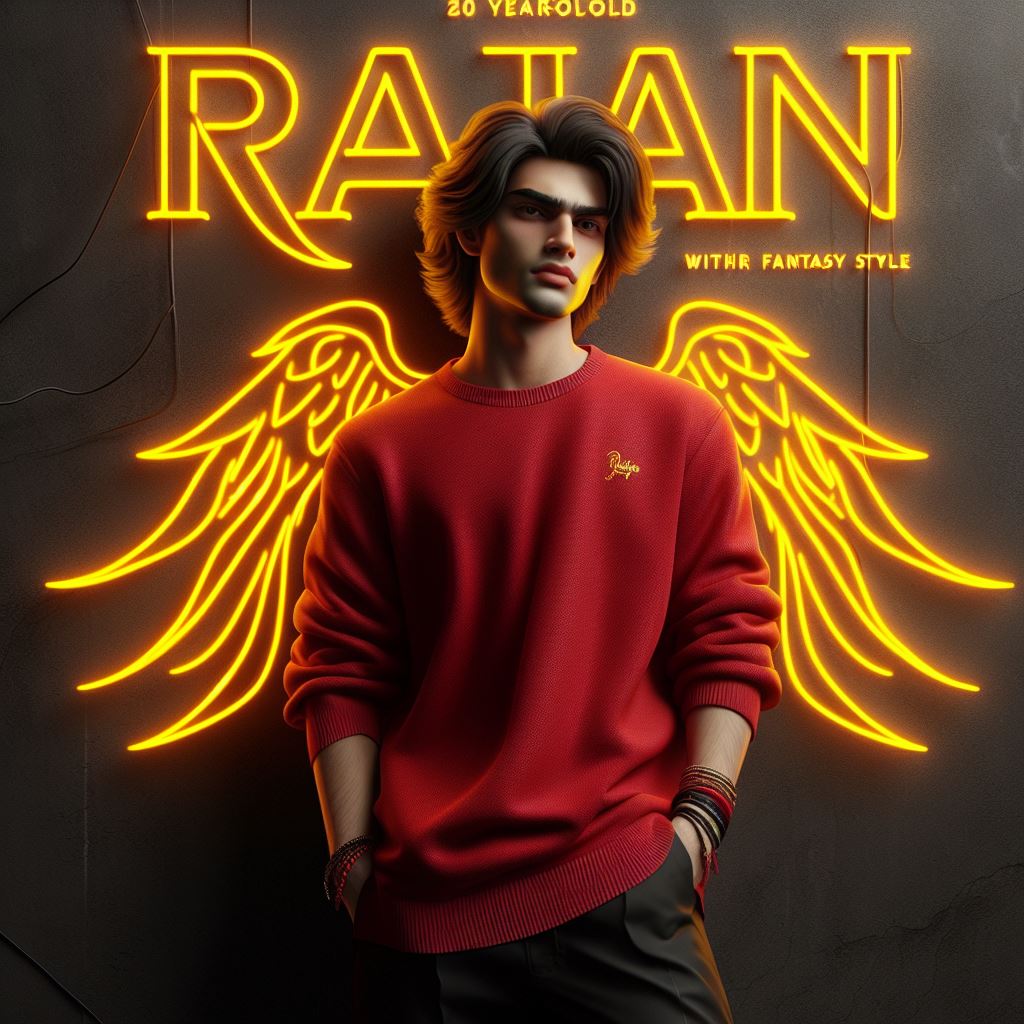
PROMPT :- Create a 3D realistic image of a 20 year-old attitude boy wearing a red dress, with, Long Hair style. He leaning against a wall with the name”Rajan” written top in big capital stylish yellow neon font written on the back black wall, hyper realistic 32k with fantasy style and the Black 3d red neon light Angels wings.

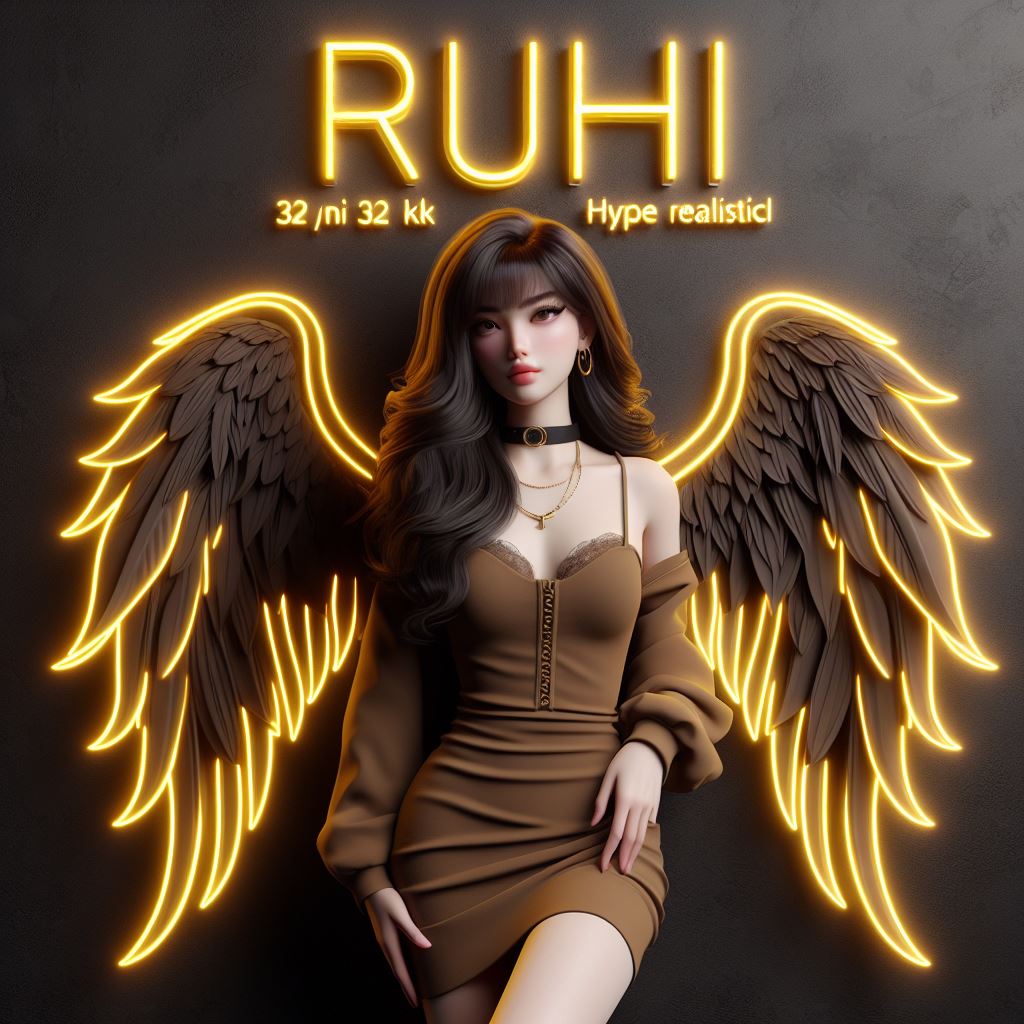
2ND PROMPT :- Create a 3D realistic image of a 20 year-old attitude girl wearing a Brown dress, with, Long Hair style. He leaning against a wall with the name”Ruhi” written top in big capital stylish yellow neon font written on the back black wall, hyper realistic 32k with fantasy style and the Black 3d Brown neon light Angels wings.
Wings Name Ai Image Generator
See, when you go to create a photo, after creating the photo, you want to make changes in it. As you can see, from what we have just given, some people may not like long hair. They want short haired people, just pay attention to this paragraph, what you have to do. It will be written there that you have long hair, so tell me that part and just cut it. Then click on Create and now see if you want to change the color in it. For example, if the neon color is yellow then you have to change it. You can apply green by making a cut in place of yellow and applying green on it.
It’s the same for girls too, you were given a different prompt. But you can also make changes from there, whatever change you want, you can do it there. Change your name there also. Now see, we will tell you how to create it.
How To Create DP Wings Name Ai Image
And if you want to create an image, then let me tell you a simple trick. Follow and see prompts given below the image. I have given only two images because you just create two photos for us. The rest of the prompt is for you to create by changing the same. Now in the above paragraph I have explained that if you want to change everything like color etc. You just put that text there. It will generate your photo after changing it, so you can do it like this. After copying the prompt, a red colored button has been added below. If you click on it, it will take you to the website. Whose name is Being Image Creator. After going there you have to paste the prompt.
The image you have after pasting. If you click on Create there, it will be created. Then what do you do after downloading it? After downloading it, now you have to put your face on it. As you might have seen in the thumbnail. If you are wearing a mask, we will inform you about that also.
Swap Your Face
To apply face, go to your browser and search face swap, after that you will get many options there. Select any one of those websites and in the first one you have to select this image. In the second one you have to select your photo and after that you have to click on swipe there. Like you will click on it and your face will be placed in it and after that you can download it and your photo will be exactly like ours.