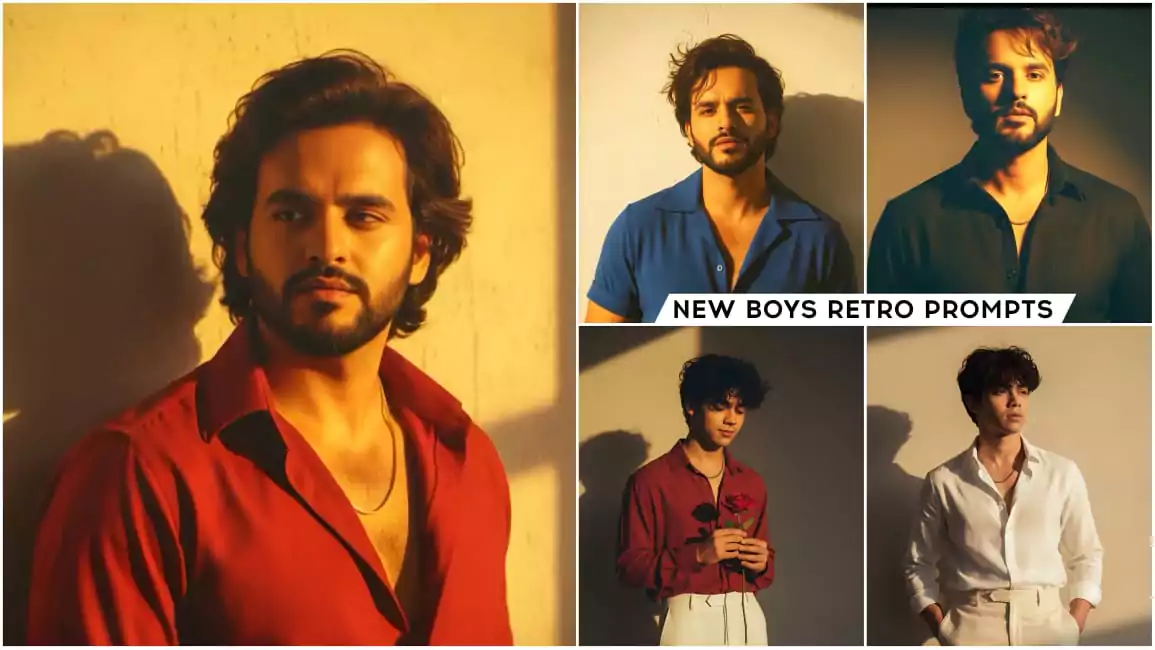
Right now, another collection of Retro Style Boys AI Photo Editing Prompts is going viral. Last time, I told you that you could create retro photos of boys like this, and you loved it so much. I saw it too and was very happy. Then I thought, let me tell you that we’re providing you with something that’s going viral for boys. This prompt is something you don’t normally get, as you may have noticed. Photos of these big influencers have been added here. These are Fukra Insaan, whose names are Fukra Insaan, and when such photos of theirs are going viral, you understand that their fans will definitely create such photos and make them viral, but they’re not getting their promises. I saw people commenting on videos there. Then I thought, let me share it with you on my website. How can you create such photos?
Retro Style Boys AI Photo Editing Prompts
I’ll explain what you need to do for this. First, let me explain the photos. The photos will be completely retro. I’ll explain what a retro look looks like. You might have noticed that there’s a monochromatic backdrop. You stand there with your entire body pinned to it, wearing a simple outfit. Clothes are typically in a single color. Some clothes are, and then a shadowy light is applied to your face. This appeals to more people. Your photo is then fully edited in Warp Town. You don’t need to do all of this. The AI will do it; you just need to upload your photo. I’ll tell you what the photo will be like later.

Photorealistic medium shot of a handsome young Indian man with wavy dark hair. He is wearing an open-collared red shirt and a gold chain, leaning against a textured wall. He is illuminated by dramatic, warm, golden hour sunlight from a window, creating strong contrasts and casting his shadow on the wall. The mood is contemplative and moody."

A handsome man with curly hair, wearing a retro blue short-sleeved shirt and beige pants. He is standing against a textured wall with dramatic, warm lighting that creates shadows. The style is a high-quality, cinematic portrait, with a focus on fashion editorial photography

Create a retro vintage grainy but bright image of the reference picture but draped in a perfect red wine color Pinteresty aesthetic retro shirt with white pant and holding a rose flower in hands. It must feel like a 90s movie and romanticising windy environment. The boy is standing against a solid wall deep shadows and contrast drama, creating a mysterious and artistic atmosphere where the lighting is warm with a golden tones of evoking a sunset or golden hour glow. The background is minimalist and slightly textured the expression on her face is moody, calm yet happy and introspective.

Ultra-realistic 4K portrait of a young Indian man, keeping the uploaded face with 100% accuracy. He is standing casually against a plain textured wall, bathed in soft golden-hour sunlight that creates dramatic warm shadows. He wears a crisp white linen shirt, slightly unbuttoned at the top, paired with high-waisted cream trousers. His hands rest in his pockets, giving a relaxed yet confident retro look. His hair is styled in a tousled, natural way, with sunlight catching the edges. The aesthetic is cinematic, vintage, and editorial, with warm tones, soft grain, and timeless masculine elegance.

A handsome man, with stylishly swept-back, medium-length hair, is looking directly into the camera with a confident and serious expression. He is wearing a dark charcoal or deep forest green long-sleeved collared shirt with subtle vertical textures. A delicate gold chain is visible around his neck. The lighting is intensely warm and dramatic, originating from the top-left, casting a rich, golden glow across his face, especially highlighting his forehead and the top of his shoulders, while creating deep, soft shadows on the lower half of his face and body. The background is a solid, warm, ochre-yellow or muted golden color, softly lit and creating a cozy yet sophisticated atmosphere. The overall style is a cinematic, high-contrast portrait with a focus on capturing a thoughtful and intense mood.

A handsome man with slightly messy hair, wearing a reddish-brown collared shirt and light-colored pants, is engrossed in reading an open book. He is standing under the warm glow of an old-fashioned street lamp. Autumn leaves are gently falling around him in the dimly lit environment, creating a serene and atmospheric scene. The lighting is soft and warm, highlighting the man and the book.
Select Best Photos For Edit
All the photos you use here should be viewed this way, only then will your photo be created perfectly. Let me explain. Once you understand, when it’s viewed this way, people like it even more. First of all, your face should match well, and your body should be clearly visible. The people who see it should feel that this photo is your real photo. I’ll explain what kind of photo you should use for this. The photo you use here should look like a perfect selfie. For example, your face should be clearly visible in it. Your eyes should be open properly, and there should be a slight smile on your face. When you use such a photo, you will get a good result.
How To Use Retro Style Boys AI Photo Editing Prompts
To create a photo, you know what you need to do. First, you need to copy this form. A button has been provided for copying it. Simply clicking on it will automatically copy it. What you need to do next is copy the prompt. You’ll find a button below that says “Create Your Image.” Clicking on it takes you directly to the Google Gemini website, where you’ll use the prompt. First, you’ll find the “Create Image” option there. You need to select it, as that’s where our image is generated perfectly. After that, you need to paste the prompt here. Then, click the “Plus” option and upload the photo. Then, click “Generate,” and your work will be done. Your photo will be created and ready here.
Overall
Now, there’s one more thing you need to understand: you have the option to generate three photos. Many people have been asking me this. What I’m saying is that you can generate multiple photos. There are different versions available. Select 2.5 Flash from that list and generate your photo using that. This will create multiple photos for you.