
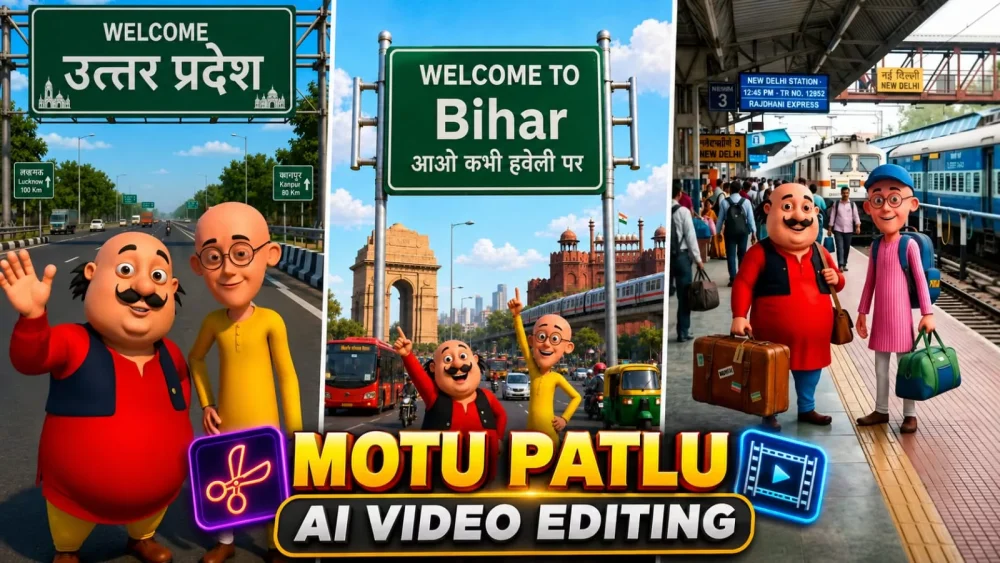
Motu Patlu Ai Video Editing Prompt – A new trend has emerged on Instagram where people are creating viral videos featuring the “Motu Patlu” theme—whether in their villages or cities—and these videos are going viral. In this article, we will learn how to create this specific viral edit, which is currently very popular. This “Motu Patlu” editing style is a great choice for you; we will walk you through every step of the process—from creation to making the video go viral.
The Process Of This Video Editing
Let’s first understand the editing process: this is entirely AI-generated editing. No real footage is used; everything—from the photos to the videos—is created using AI. We start by generating a photo and then convert it into a video. The best part is that we can customize the dialogue to our liking—we can make the character say exactly what we want. Creating the image, converting it into a video, and having the character speak produces truly amazing results. I will now walk you through the steps and show you exactly how to do it.
How To Create Ai Image First?
Now it is time to create the photo. We have already provided you with the prompts in the article—various types for you to choose from. Simply copy the one that works best for you, then open ChatGPT. First, enter your prompt, and then click the plus (+) icon to upload your photo; you can upload any photo you like. After that, hit generate, and you will see excellent results that can be converted into a video. There is one more important point to note here: different image prompt styles will result in different types of videos, and the corresponding video prompts will also differ—so please keep that in mind.
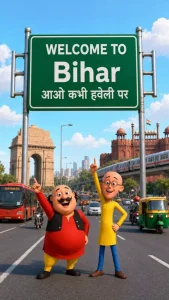
Image Prompt-
Create a high-quality 3D cartoon-style scene inspired by classic Indian animation. Two funny cartoon friends stand in the middle of a wide modern Indian city road, smiling and pointing upward. The left character is a chubby man with a big black moustache, wearing a red kurta, yellow pajama, black waistcoat, and black shoes. The right character is a slim bald man with round glasses, wearing a yellow kurta, blue pants, and brown shoes, raising one finger upward.
Behind them is a large green highway signboard supported by two silver poles. The signboard has a white border and bold white text exactly as follows:
WELCOME TO
Bihar
आओ कभी हवेली पर
The text must be perfectly centered, sharp, correctly spelled, and use realistic Indian highway sign typography.
Background: A busy Indian city with India Gate on the left, Red Fort on the right, a metro train on an elevated track, red city buses, auto-rickshaws, motorcycles, cars, streetlights, trees, and a bright blue sky with soft white clouds.
Camera angle: Eye-level, wide-angle, centered composition.
Lighting: Bright natural daylight with soft realistic shadows.
Style: Ultra-detailed Pixar-quality 3D cartoon render, vibrant colors, smooth textures, cinematic lighting, depth of field, Ultra HD, 8K, highly detailed, professional animation quality.
Vertical composition (9:16), realistic road markings, clean perspective, sharp focus, vibrant colors.
Video Prompt –
Create a 10-second ultra-realistic 3D animated selfie vlog using the uploaded image as the exact reference. Keep Motu, Patlu, their clothes, expressions, and the highway background unchanged. Add natural lip-sync, blinking, facial expressions, hand gestures, and slight handheld camera movement. Motu smiles, waves, and says:”हेलो दोस्तों मैं मोटू हूँ। आज मैं ग्रेटर Noida घूमने आया हूँ। यहाँ का माहौल बहुत बढ़िया है। आज मैं ग्रेटर नोएडा का गरमा गरम समोसा खाऊंगा। Now Patlu speaks.”दोस्तों, यह शहर बहुत ही सुंदर है। अगर मौका मिले, तो यहाँ ज़रूर आइए!” Add realistic highway ambience, passing vehicles, birds, light wind, cinematic lighting, smooth animation, 4K, vertical 9:16.
How To Generate This Video?
We will use ‘Flow’ to create the video. You will see that various video prompts have been provided here. Select the image you created—for instance, the first one—and use it to generate the corresponding video. Next, copy the video prompt and open the Google website (I have provided the direct link below). First, sign up on the site, then click on ‘New Project’ and use the plus (+) option to upload your photo. After that, paste the prompt; you can customize it to include whatever text you want the subject to speak. You can even insert your specific location name. Finally, hit ‘Generate,’ and your video will be ready exactly as you envisioned.
Conclusion
You can easily create a viral Instagram video like this. I’ve explained the details of how to create one. Just follow the steps and create it.


