Golden Hour Ai Photo Editing Prompts – Sometimes, when we take a picture, it doesn’t turn out right. This could be due to various reasons, or perhaps because of our phone’s camera. Our phone camera takes pictures in a completely normal way, but when we see someone else’s photo that uses the golden hour effect, it looks amazing. If you want your normal photos to be transformed with a golden hour effect, I’m going to tell you in this article how you can create it. You’ll find very few people who will tell you about this kind of trick. But I’ll show you how we can convert even a normal photo into a stunning result using this method. I’ll explain it to you step by step. Just follow along.
Details Of Golden Hour Ai Photo Editing Prompts
In this article, we’ll be transforming some of our photos. Sometimes, when we take pictures, they don’t turn out right, or the colors are off, or even worse, the image is too dark. We’re going to fix that. In this article, we’ll show you how to convert your normal photos into a golden hour photo. Your photo will have a beautiful, natural effect. It will look like you hired a professional photographer to take the picture. That’s what we’ll be doing, and to achieve this, you’ll use Google Gemini and a prompt. You can easily create this effect with the help of a prompt. You can do all of this simply using Google Gemini.
Some Mistakes You Should Absolutely Avoid.
There are some mistakes you absolutely must avoid. If you’re doing this kind of editing, be sure to avoid these mistakes. First, you need to check things in the over-editing prompt. For example, I provide professional prompts here. You won’t encounter any problems with these. If you’re creating anything or writing prompts yourself, make sure you don’t add too many extra things that will make your photo look over-edited. Also, don’t give too much detailed description about the colors. Just add simple color descriptions, which will help create a more natural-looking photo. You shouldn’t upload low-resolution images. If you’re using a reference image, the photo quality should always be high. Furthermore, don’t create a photo that combines two styles, such as both emotional and dramatic. Avoid such combinations, otherwise, instead of generating the desired image, something else might be created.
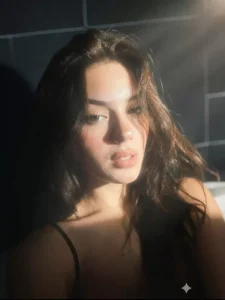
Apply a bold night-flash aesthetic to the uploaded photo while fully preserving every original detail of the photo unchanged except for lighting, glow, and color mood.
Keep the nighttime environment dark, deep, and unlit, maintaining all existing shadows and silhouettes. Do not brighten or alter the background except for slightly enhancing existing point lights to keep the night atmosphere realistic.
Illuminate the subject with a strong, warm, and direct front-facing flash. The flash should be drawn precisely to the face and upper body, making the subject the brightest element in the entire frame. Add diffused sunbeams striking the subject’s skin, creating a glowing highlight on cheekbones, nose bridge, lips, and hair strands. Maintain clear separation between bright sunlit areas and soft, deep shadows to create a cinematic high-contrast mood.
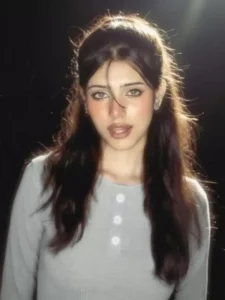
Apply an ethereal lighting filter to the uploaded photo while fully receiving every origin detail of the photo and accept or light and colour mode. Add diffuse Sam striking and subject skin. Creating a glowing highlight on thickness wants no space, lips and hair brands maintain a clear separation between bright sunlight areas and soft deep shadow to create cinematic high contrast inject subtle lens bloom light has an a thin layer of atmospheric around the face, shoulder render skin with luminous transaction and gentle fists, black guilty by sunlight, colour Salai slightly lower Head saturation and gentle fame like crane. Keep the overall background intact, but I love sunlight and soft box to rap naturally around the subject. heart result do not change the face and hair of the subject.
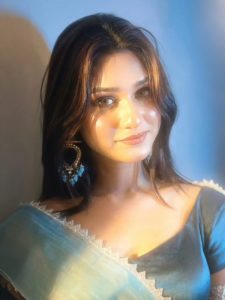
Create a moody mysterious portrait of my picture.
Keep the same background and camera angle as per the reference warm golden hour sunlight casting dramatic shadow on a plain wall ensure the strong shadow of the face on the wall is visible ratio 9:16 overall cinematic tone.
Do not change the pose or any kind of detail, just add sunlight
What Are The Advantages Of This For A photo Editor?
Let me tell you, it offers a fast workflow. You can create professional-looking edits in just a few minutes. With a little practice, you can have a great photo ready in no time. You can create unlimited photos. Just imagine the kind of photo you want, and then generate it. And you get all this for free or at a very low cost. Most importantly, even someone with absolutely no prior knowledge can become a pro editor using this kind of editing tool. These are some of the advantages that allow you to easily become a professional editor.
How To Create Your Image?
Now, Creating this photo is also very easy. There are a few steps involved, which, once you understand them correctly, will always give you a great result, and your editing will be absolutely perfect. First, choose the style of photo you like from the options provided here, as I have defined different styles. You can copy the one you like. After copying, go to Google Gemini. A button is provided below; you can click on it to go there directly. Once there, first paste the prompt. You can paste any prompt you want, the one you copied from here. Then, go to the plus option and upload a selfie for reference, and then click generate. Your photo will be ready, just like the prompt you copied.