ChatGPT Photo Editing Commands – If you’re using prompts for photo editing these days, you’re doing the wrong thing. Professional editing is possible in just one word, and I’ll explain how you can use this guide to create professional photos. You won’t need a subscription to do this. I’ll explain how you can create them using a completely free tool. If you want to learn something different, follow this article, which will explain all the details.
How does a single word create an image?
If you use a prompt that specifies every detail, the result is precise; however, using just one word—like “cinematic”—can transform your photo into a cinematic-style image. Consider this: if you were to explicitly ask for dramatic lighting or a dark background, the system would simply try to adjust the photo accordingly. But when you use a single word like “cinematic,” it carries an entire visual concept behind it; elements typically found in cinematic photography are automatically incorporated into your image
Transform One Photo into 10 Viral AI Styles
You can transform a single photo into 10 different styles. For instance, take a standard portrait; you can convert it into various looks. If you specify “cinematic,” the photo takes on a cinematic quality. Specifying “royal” gives it a majestic, regal appearance. Opting for “luxury” transforms the image into a premium-style shot—featuring clean backgrounds, soft lighting, and elements associated with high-end aesthetics. There are many such styles available; simply by using a single keyword, you can create a viral-worthy photo. If you want to create these yourself, just follow the instructions in this article carefully.
Commands –
Cinematic / Movie Looks

1. /Cinematic — cinematic movie-style color grading


2. /FilmLook — natural film photography look


3. /MovieTone — dramatic movie color tone


4. /TealOrange — subtle teal & orange grading


5. /Moody — deep, moody cinematic atmosphere


6. /DarkCinematic — darker premium cinematic mood


7. /SoftCinematic — soft, elegant cinematic look


8. /HDR — detailed high-dynamic-range finish


9. /DSLR — realistic DSLR photography finish


10. /PortraitFilm — premium portrait-film aesthetic


🌫️ Nature / Atmosphere

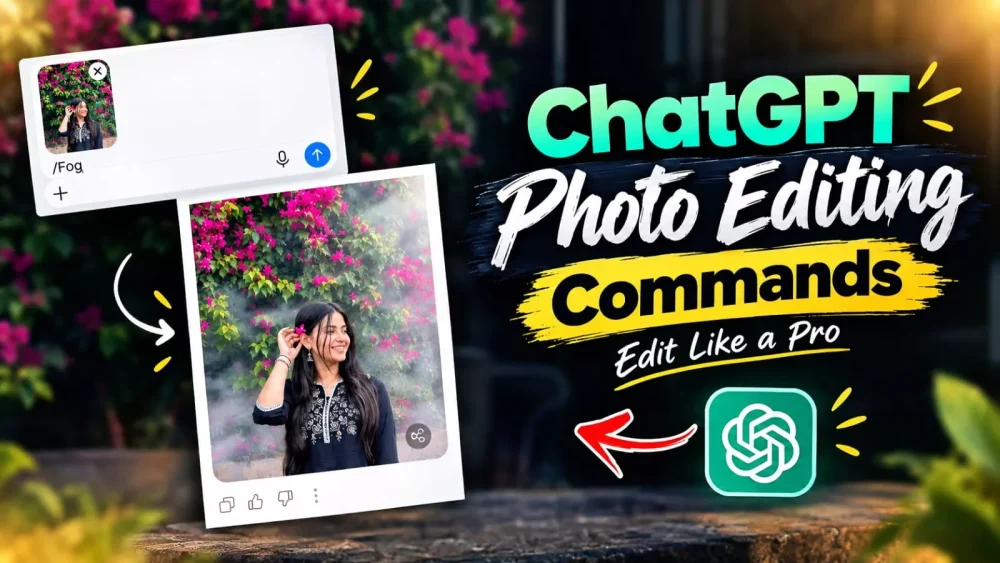
11. /Fog — soft natural mist around the subject


12. /Mist — dreamy lightweight mist


13. /MorningMist — fresh early-morning atmosphere


14. /GoldenHour — warm golden-hour sunlight


15. /SunRays — subtle rays of sunlight through the background


16. /Cloudy — soft overcast natural lighting


17. /Dewy — fresh, slightly dewy environment


18. /Dreamy — soft dreamy photography effect


19. /FairyGarden — magical but realistic garden atmosphere


20. /Bokeh — beautiful natural background blur


✨ Premium / Aesthetic

21. /Luxury — clean premium editorial finish


22. /Elegant — sophisticated portrait aesthetic


23. /Glow — subtle natural skin and ambient glow


24. /SoftGlow — gentle diffused glow


25. /Pastel — soft pastel color grading


26. /Vibrant — rich but realistic colors


27. /CleanColor — crisp professional color correction


28. /Editorial — high-end magazine photography style


29. /DreamPortrait — dreamy premium portrait treatment


30. /NaturalPro — professional photography look while keeping the image natural
One-Word AI Photo Prompts: Create Stunning Images with Just a Single Keyword
The best thing about the “one-word prompt” feature is that you don’t need to write lengthy prompts. If you aren’t sure how to craft prompts, all you have to do is type a single word. For instance, if you type “cinematic,” it instantly transforms your photo into a cinematic style. While you can certainly add specific details if you wish, the option to generate a finished photo from just one word is incredibly convenient. Give it a try, and you’ll see how a single word is all it takes to create your image. Various styles are available for you to use—go ahead and explore them.
CONCLUSION
Here is how you can create this kind of edit. I’ll walk you through the proper steps. First, copy the prompt—choose whichever single prompt you prefer—and paste it into ChatGPT. Click the plus (+) icon there to upload a reference photo; you can use any reference photo you like. Once you hit generate, it will create the final video for you, delivering excellent results.