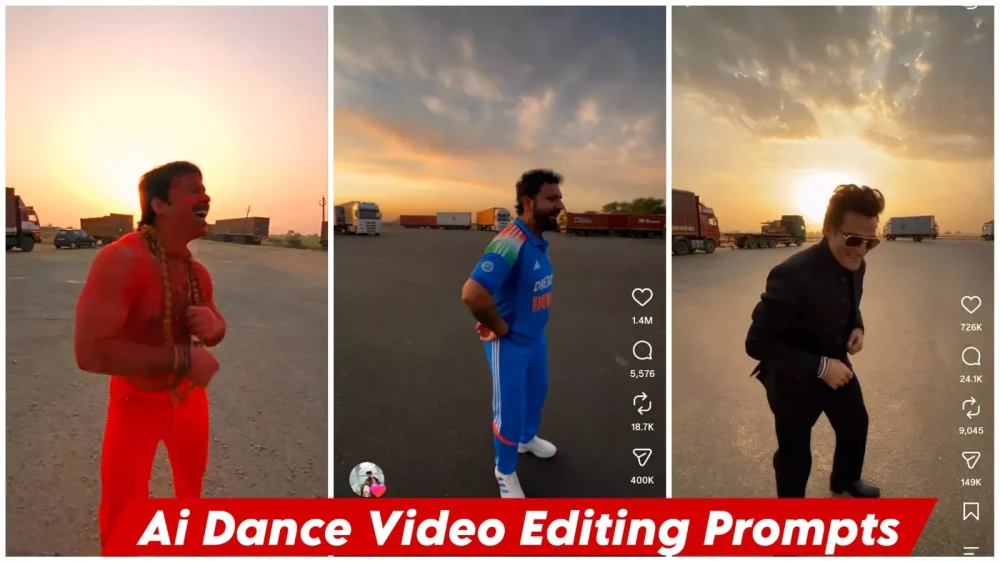
Celebrity Funny Ai Dance Video Editing Prompt – You may have noticed that such dancing videos are going viral on social media. They’re going viral, and creating them doesn’t require much effort. Just follow a few simple steps and your editing will be perfect and ready to go viral. If you want to create the kind of editing that’s so popular these days and is going viral, you can follow this article. It will explain the full details of editing. It will also be explained in two processes. Both are easy and free, and your video will be absolutely perfect.
Details Of Celebrity Funny Ai Dance Video Editing Prompt
Let’s talk about the video. What’s going to happen in the video? Record a video of a person dancing. Then, another person is recording the video. A third person emerges from the car and starts dancing as well. Then, the face of the person recording the video is shown. What happens is that this same character is there. This character has just changed. There, one is you, one is your friend, and the third is someone else. This is shown perfectly, and people are going crazy over this very thing, thinking, “We too want to create it.” In this article, I’ll teach you exactly how to create it.
Methods Of Creating This Viral Ai Video
Now let’s talk about it. Look at its editing. This video has been created. It is going to be created using two methods Google Gemini and Google Flow and you will get very good results from it, so in this you will have to split videos of 10 seconds each, like you cannot use one reference video because it will create a long video in one go, so if you want you can split it into 10 seconds or you can do this that if you use one video then it will prepare a section for 10 seconds, so I have already told you this thing and you prepare it and then follow the further process.
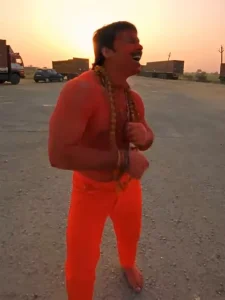
Video Prompt –
Use the uploaded reference video as the primary visual and choreography reference.

I will provide three separate reference images:
Reference Image 1 = Person 1
Reference Image 2 = Person 2
Reference Image 3 = Person 3

All three subjects are adults aged 18 or older.

Create a new photorealistic vertical 9:16 video inspired closely by the uploaded reference video.

SUBJECT CONSISTENCY:
Use each corresponding reference image to maintain the same adult person's recognizable appearance throughout the video.

Person 1 must consistently correspond to Reference Image 1.
Person 2 must consistently correspond to Reference Image 2.
Person 3 must consistently correspond to Reference Image 3.

Maintain each person's recognizable facial appearance, hairstyle, hairline, skin tone, general body proportions and overall visual characteristics. Do not swap identities between subjects or combine facial features from different people.

REFERENCE VIDEO:
Follow the reference video's overall sequence, pacing, camera positioning, framing, subject placement, movement direction, gestures, expressions, interactions, transitions and visual rhythm as closely as possible.

Preserve the same general choreography and timing without introducing unrelated actions or changing the basic sequence.

CAMERA:
Match the reference video's smartphone-camera aesthetic, camera height, perspective, lens characteristics, framing, handheld movement, close-ups, wider shots, push-ins and pull-backs as closely as possible.

Keep the composition vertical 9:16.

MOTION:
Recreate the natural movements and interactions shown in the reference video. Keep all human motion realistic and physically consistent.

Avoid exaggerated movements, robotic motion, body deformation, unnatural hands or fingers, or unrealistic facial animation.

VISUAL STYLE:
Photorealistic live-action footage.
Natural skin texture.
Realistic lighting and shadows.
Natural outdoor/environmental lighting.
Natural motion blur.
Realistic depth of field.
Authentic smartphone-camera appearance.

No CGI.
No 3D-rendered appearance.
No cartoon style.
No plastic-looking skin.
No artificial beauty filter.

ENVIRONMENT:
Keep the same general environment, background arrangement, atmosphere, lighting conditions, perspective and visual mood established by the reference video.

Do not unnecessarily redesign the location or introduce unrelated elements.

IDENTITY AND SUBJECT RULE:
The three reference images determine the appearance of the three adult subjects.
The reference video determines the choreography, camera behavior, scene structure, movement style and interactions.

Keep the three subjects visually consistent throughout the entire video.

FINAL RESULT:
Create one continuous photorealistic vertical 9:16 live-action video that closely follows the visual structure and choreography of the reference video while featuring the three provided adult subjects.

The result should feel like a realistic recreation of the reference video's scene rather than an unrelated reinterpretation.

No text.
No captions.
No watermark.
No logo.
How To Generate Video In Gemini ?
Now, let’s talk about the editing part. Understanding the editing process is crucial here. The first step involves creating the content using Google’s tool; you need to have the ‘Pro’ plan active to do this, so make sure to activate that first. Next, click on the plus (+) option and select the video model. Then, click the plus option again to upload a reference video, along with three photos. After that, paste your prompt and hit generate; it will create a perfect video with excellent results that you will really like.
How To Generate Video In Flow Ai?
Now, if you want to understand the second process, we will use Google Flow (or a similar tool like Google’s video generation capabilities). You should be aware of this; it allows us to create excellent videos. To get started, open the website, go to “New Project,” and click the plus (+) icon to upload a reference video or photo—choose whichever works best for your needs. Next, click the plus icon again to select your video and photos. Finally, simply paste the prompt and hit “Generate.” This will create your final video with outstanding results.
Conclusion
I hope you enjoyed this editing. I’ve explained every detail in this editing. There’s nothing you can’t understand, but if you find something missing, you can ask us. We’ll bring you even more great things and explain how you can do your editing even better.