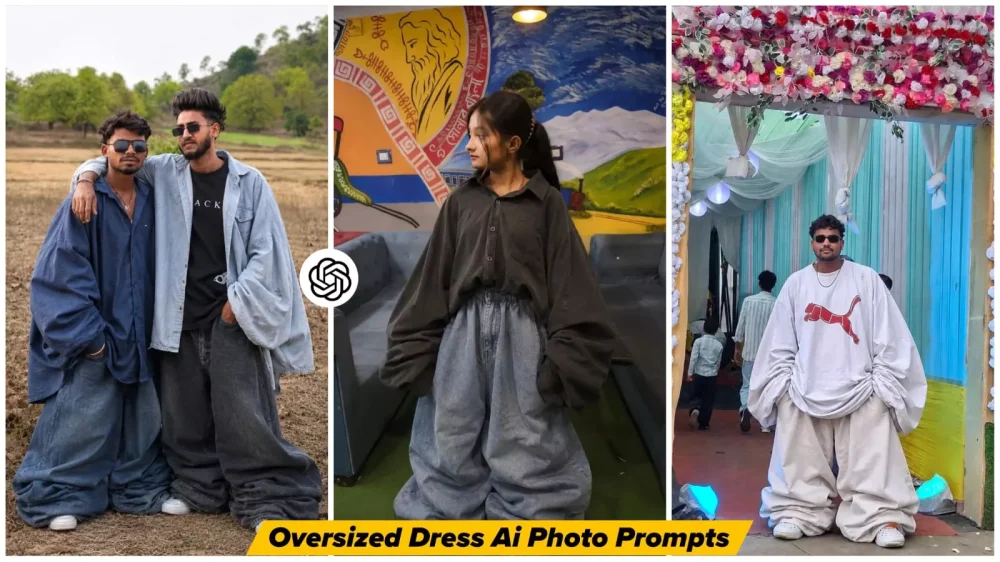
Baggy Outfit AI Trend – If you browse Instagram right now, you’ll notice that certain photos are going viral—images that look completely different from your typical snapshots featuring ordinary attire. What you see here are truly unique visuals: if you are wearing standard clothing in your original photo, the image is transformed to depict you in “oversized” outfits—styles that are distinctly baggy and voluminous, going far beyond the norm. People are really loving this aesthetic, viewing it as a distinct fashion statement. If you’d like to join in on the fun and create this trending edit yourself, you certainly can, as it continues to be a huge hit with the audience. You can generate three or four variations of your image at once and then share them on social media. Let’s learn how to recreate this viral photo trend and make your own version go viral!
Details Of Baggy Outfit AI Trend
Let me explain how you will encounter this trend. First off, it takes your standard photograph and transforms it. While everything else in the image remains exactly as it was, the sole modification involves your clothing: The designer alters it to appear oversized—specifically, loose-fitting and baggy. Consequently, viewers are finding themselves highly captivated and intrigued by these transformed photos. It is important to note that this process does not merely enlarge your image; there is a subtle nuance to understand here. If you observe closely, you will notice that the background moves and adjusts in tandem with the subject. Furthermore, any natural elements present in the background are seamlessly integrated and adjusted; for instance, if the clothing expands to a larger size, the background elements are either partially obscured or carefully repositioned to accommodate the change. The overall result looks remarkably realistic.
Let Me Share My Experience.
When people come across photos like this, they stop in their tracks. They begin to wonder: “How is this possible? Is it real, or is it Photoshopped?” A multitude of questions—such as who created the edit—start swirling in their minds. These types of photos significantly boost user engagement; in fact, when I first saw this trend emerging, I had exactly the same reaction. That got me thinking: “Why not share this editing technique with our own viewers so that they, too, can create viral photos like these?” That is exactly what I am doing in this article—and I will walk you through the process, explaining exactly how you can create them and achieve excellent results.
How Does AI Create This?
Normally, it is quite difficult; however, if you are a skilled Photoshop artist, the task becomes easier for you—allowing you to achieve this by manually adjusting various elements and managing numerous details. AI, on the other hand, effortlessly and flawlessly redesigns the entire outfit. It takes the existing fabric and expands it, simulating natural folds and drapes. It also seamlessly adjusts the background, resulting in a final image where the clothing appears as a long, flowing garment. The level of detail in the image is truly unique—something you will fully appreciate once you see it for yourself.
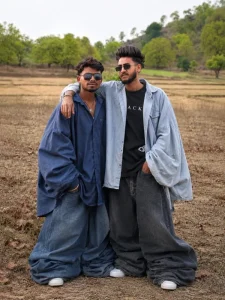
"Automatically transform the clothes on the person in the uploaded photo into an EXTREME oversized, massive, and baggy 'jhula dhala' fashion outfit. The Al must NOT require any reference image; only use the clothes already visible on thesubject.Transformation Rules:Top/Shirt: Make the top 4X-6X larger than the actual body. Sleeves must be extremely wide, puffy, and hanging well below the hands. Bottoms/Pants: Make the pants ultra-wide, heavily oversized, balloon-style, and bunched/stacked near the feet. Fabric: Add huge fabric volume, dramatic loose folds, and a droopy/ chunky silhouette so the outfit looks comically large but naturally draped.Preservation: Strictly preserve the person's real face, hairstyle, skin tone, pose, body angle, and background exactly as they are.Keep the original clothing style and color theme identical to the original image."
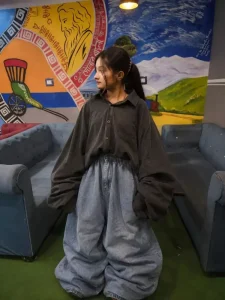
Transform the clothing worn by the person in the uploaded image into an extremely oversized, ultra-baggy “jhula dhala” streetwear outfit while keeping the entire scene realistic and natural. Do not use any external reference image — only modify the existing clothes visible on the subject.Outfit Transformation Details:• Shirt / Hoodie / Top:Increase the size of the upper clothing to look 4x–6x larger than the body. Make the sleeves extra long, super loose, and hanging far below the hands with dramatic puffiness and heavy fabric folds.• Pants / Bottom Wear:Convert the pants into ultra-wide balloon-fit trousers with excessive fabric volume. Add stacked folds near the shoes and create a droopy oversized silhouette with natural cloth bunching.• Fabric & Style:Make the outfit look extremely chunky, loose, flowy, and exaggerated while still maintaining realistic fabric physics. Add deep wrinkles, layered folds, and cinematic oversized fashion styling.• Preserve Original Identity:Strictly keep the person’s real face, hairstyle, skin tone, pose, body proportions, camera angle, lighting, and background unchanged. Maintain the same clothing colors, textures, and fashion style from the original image while only increasing the size and looseness dramatically.The final result should look like a realistic high-fashion oversized streetwear photoshoot with naturally draped giant clothing.
Why Is This Going So Viral On Social Media?
There is a specific reason behind the photos going viral. First and foremost, they feature intense visuals that grab immediate attention. They create a truly unique identity. Indeed, you will observe that people are really loving these types of photos—so much so that they are actively sharing them with their friends. Furthermore, the underlying concept is user-friendly; anyone can create these images, and do so with ease—especially with the assistance of ChatGPT, which makes the creation process incredibly simple.
How To Generate Image In Chatgpt?
To create this photo, you need to open ChatGPT. Simply click on the plus icon here to upload your image—you can upload any photo of your choice. Next, paste your prompt; once you hit “Generate,” the tool will process your input and produce a refined version of your photo, delivering excellent results. Provided you have used the correct prompt—and haven’t made any subsequent adjustments—you will receive a result that precisely matches the specifications of the prompt you provided.