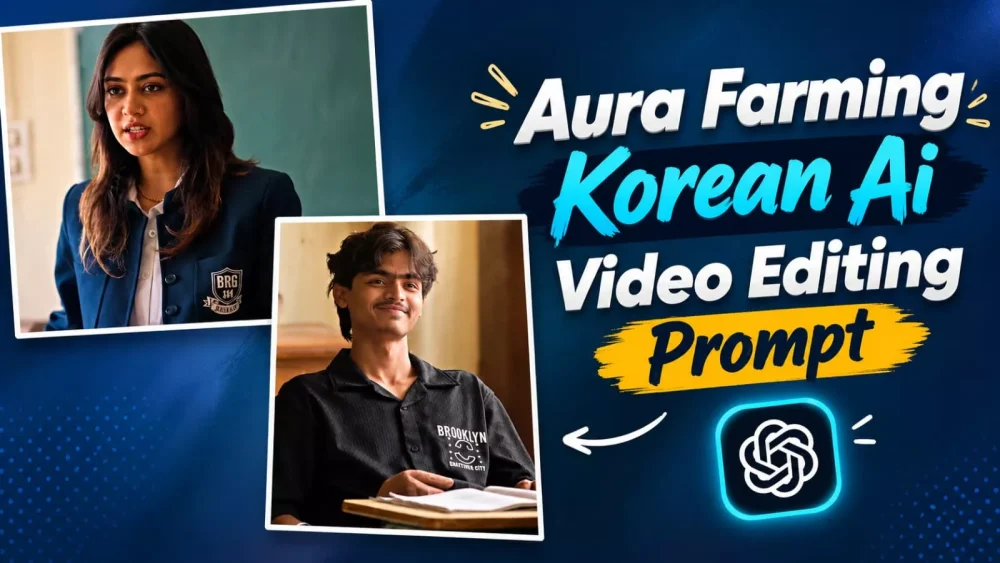
Aura Farming Korean Ai Video Editing Prompt – Videos on “aura farming” have gone viral on social media, and creating them is quite easy these days. With the right guide, you can create these videos yourself. If you want to make viral “aura farming” content, you can follow these specific steps—no extra effort will be needed. I will explain the editing process in full detail. You will also have access to a comprehensive article; simply read and understand it, and you won’t need anything else. Once you’ve read the article, you’ll be able to create perfect videos. I’ll provide a step-by-step guide so you can get started right away.
Details – Aura Farming Korean Ai Video Editing Prompt
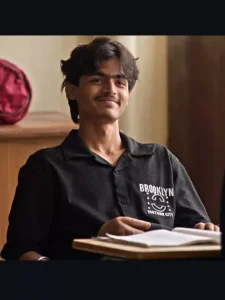
Let me explain what the video looks like. First, let’s understand the video itself, and then we’ll cover the editing process. The scene features a teacher and a group of boys in a classroom; the teacher asks them to sit, but they just laugh instead. Then, a boy enters and simply tells them to take their seats, and they all immediately sit down. You are going to be that boy—the one who enters last. This editing style has become quite popular with audiences, and in this article, I’ll walk you through the exact steps to create it. You can easily create it by following these instructions. If you want to achieve excellent results with this edit, just follow the guide provided here.
Important Steps :-
It is important to understand the steps and methods involved in this editing process. You can do this in two ways: using the Google Flow website or Google Gemini; both methods are quite easy. I have explained the specific steps for both in the next paragraph. You will find the process to be very similar for each. When you start editing, make sure to first split your reference video into 10-second segments before using them; doing so will ensure you achieve the best results.
Use the uploaded reference video as the exact motion reference. Track the main subject’s full-body movement, posture, head movement, shoulder movement, hand/arm gestures, walking direction, weight shifts, and facial reactions frame-by-frame.Preserve the original body-motion timing and choreography as closely as possible. The generated subject should follow the same poses, transitions, head turns, body orientation, gestures, and natural pauses as the reference video.Keep human anatomy realistic and stable throughout the entire clip. Maintain consistent face, hairstyle, clothing, body proportions, and identity. No unnatural limb movement, no extra fingers or limbs, no body warping, no sudden pose changes.Match the original camera movement, framing, perspective, shot transitions, and pacing. Keep the motion smooth, cinematic, realistic, and physically believable. Use subtle natural secondary motion in the hair and clothing while maintaining accurate body-motion tracking.IMPORTANT: Prioritize accurate motion transfer from the reference video over creating new choreography. Do not change the timing or direction of the subject’s movements.
How To Create With Google Gemini ?
For the first method using Google Gemini, you need to open the tool first. Then, select the video model; to do this, click the plus icon and choose the video option. Next, click the plus icon again to select the video first, followed by a photo of yourself. Finally, simply enter the prompt and hit generate; it will create a professional-looking video featuring a talking head. You’re going to love it—I tried it myself and really enjoyed the result, which is why I’m sharing this with you. So, what’s the next step?
How To Create With Flow ?
We will make it on Google Flow website and to make it in Google Flow, first search it on Google and open the first website that comes up, there you have to go to New Project and there you have to click on the Plus option and upload your reference photo or video, whichever is yours. You upload it. Then after that you have to paste the prompt. For that, first of all you select that video and photo on the timeline. Below you will get the Plus option. You will select it from there. Then after that you paste the prompt and then generate it, then it will make a wonderful video of yours which will look very good on social media and will also go viral.
Conclusion
I hope you enjoyed this editing. I’ve tried to explain every detail and offer some new insights. If you like it, please leave a comment and we’ll tell you how. If you have any problems, we’re ready to help.