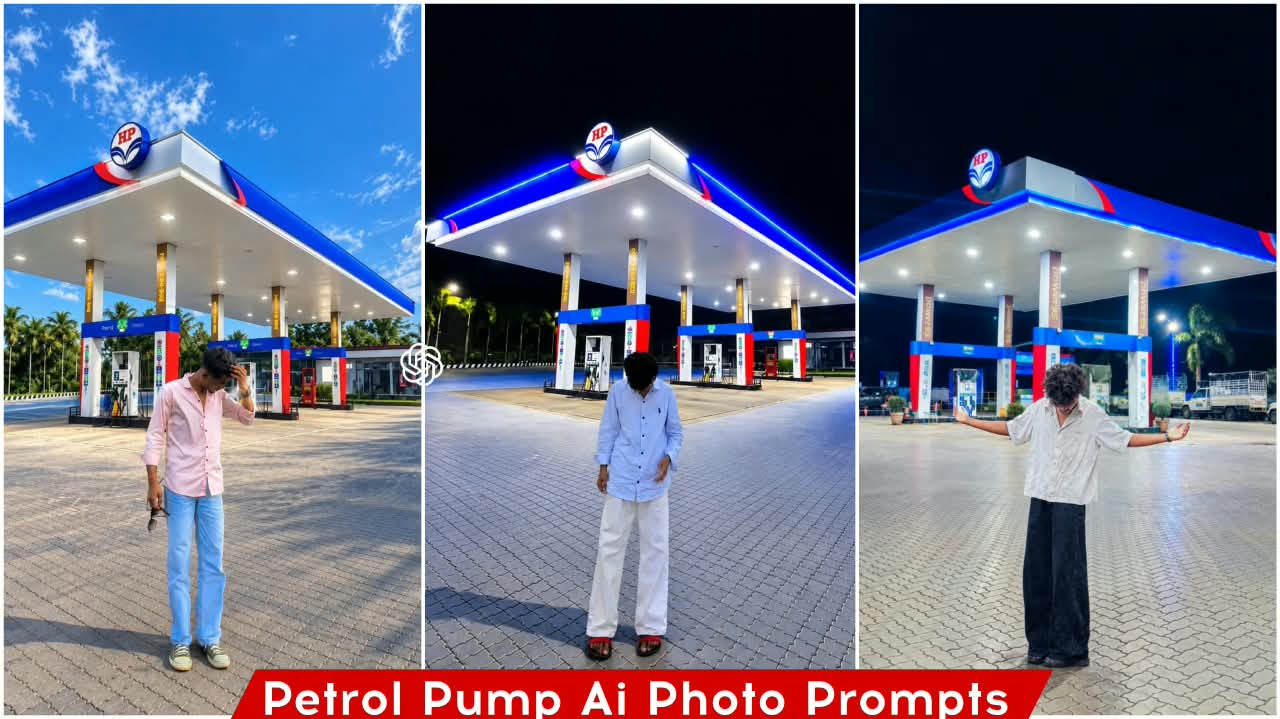
Petrol Pump Ai Photo Editing Prompt – In the world of AI photo editing, new trends constantly emerge, with people creating images based on various styles. Currently, a popular trend involves creating photos that look like authentic camera shots set against a petrol pump background—even though the image is actually edited. People are flocking to this specific background because of its immense popularity; it allows them to seamlessly blend their own photos into the scene for a natural look. If you want to learn how to create these images yourself, I will explain the process in this article. You can follow the steps outlined here to create your own versions.
Details Of Petrol Pump Ai Photo Editing Prompt
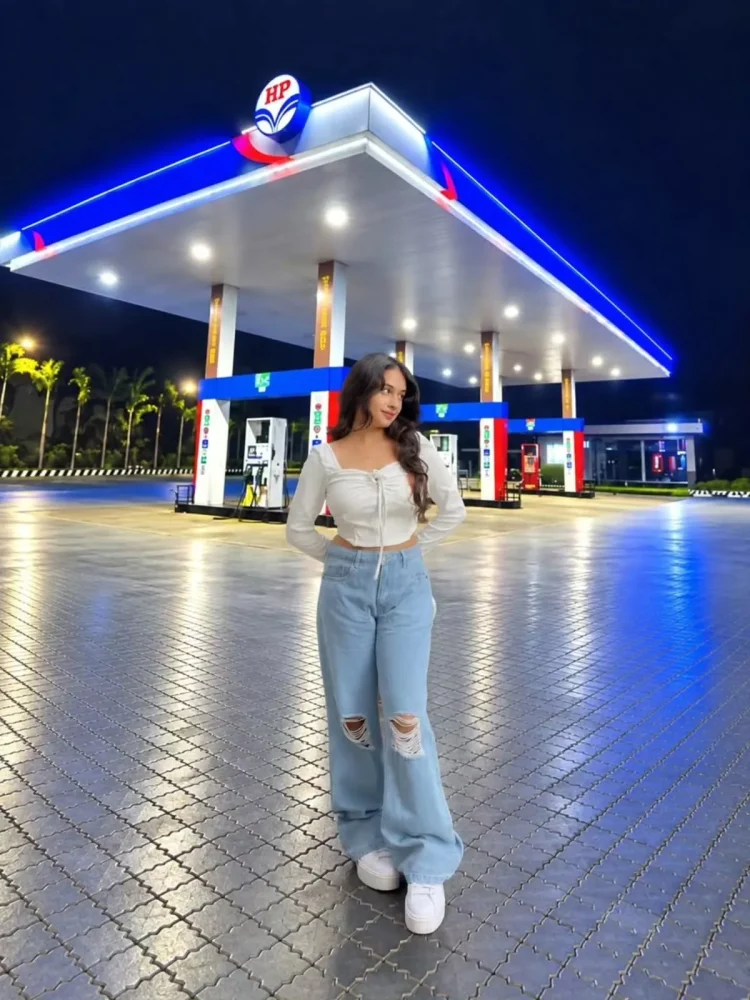
What exactly is this “petrol pump photo editing”? It involves taking a person from one photo and placing them into another—specifically, one featuring a petrol pump. The subject is extracted from the original image and seamlessly integrated into the background shot, creating a cinematic look as if they are standing right in front of the petrol pump. The insertion is done so naturally that it is impossible to tell the person was added separately; the goal is to showcase the subject against the backdrop of the petrol pump, as this style currently appeals to audiences. Since it is crucial to create content that the audience enjoys, this type of editing is worth doing.
Why does that “petrol pump” photo turn out so perfectly in ChatGPT?
Consider standard background removal apps or typical editing tools that simply cut out a subject and paste it onto a new background; the result often looks like a forced composite—artificial and disjointed. However, with ChatGPT, it’s different. If you place a person—originally photographed at night—against a nighttime petrol pump background, the AI doesn’t just swap the backdrop; it adjusts the ambient lighting, atmosphere, and depth of field to match the scene. This is why the petrol pump background example is so significant. Lighting, perspective, shadows, the background, and the subject’s positioning must all harmonize—and in ChatGPT, these elements adjust automatically if you use the right approach, utilizing the specific backgrounds and prompts provided.
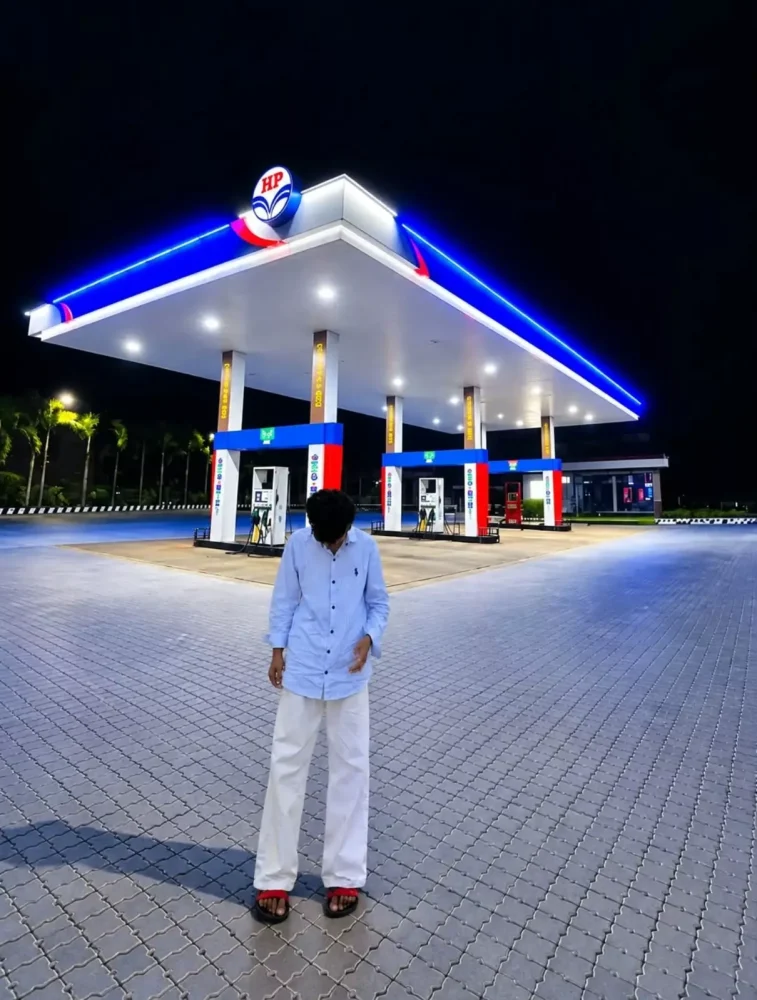
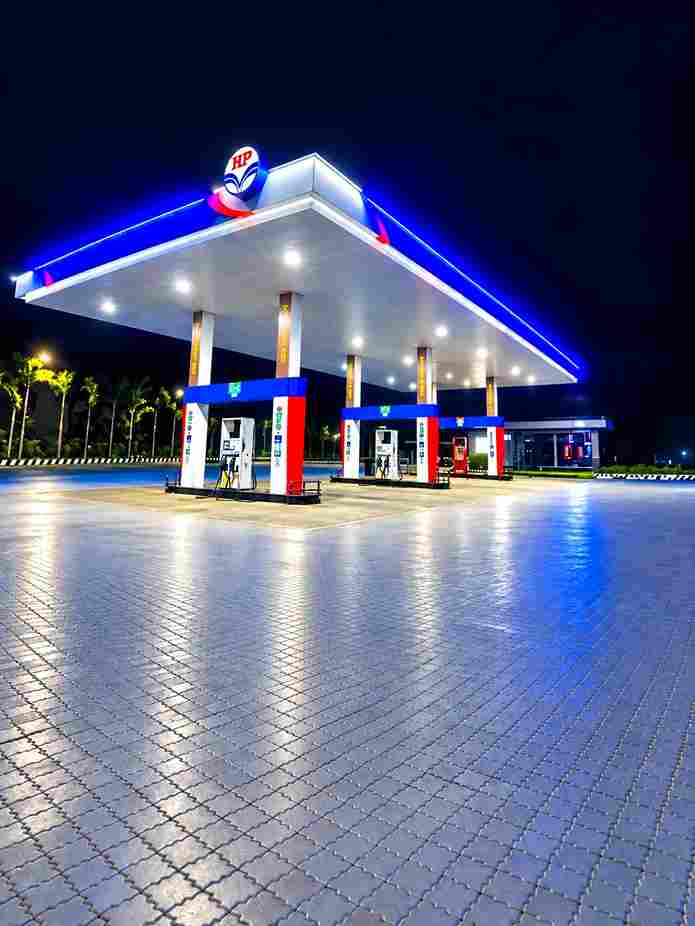
Use the first photo as the exact person reference and the second as the background. Place me naturally into the scene, preserving my face, hairstyle, skin tone, body, clothes, pose, and proportions. Match lighting, shadows, perspective, colors, and camera quality perfectly. Add subtle highlights and realistic shadows for a seamless photorealistic result.
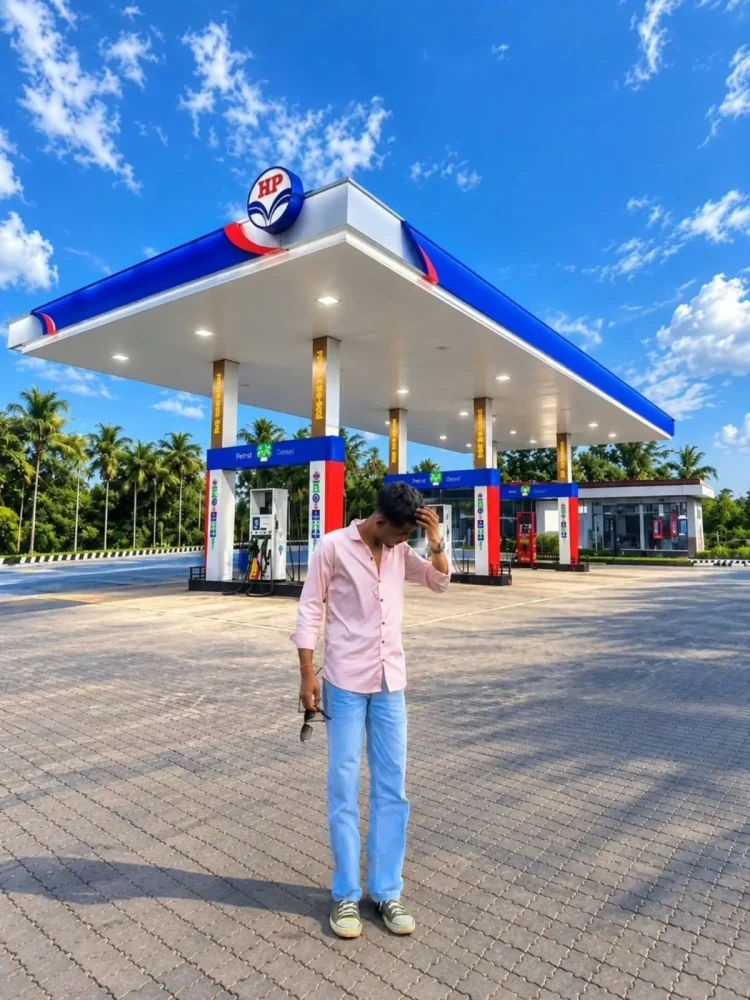
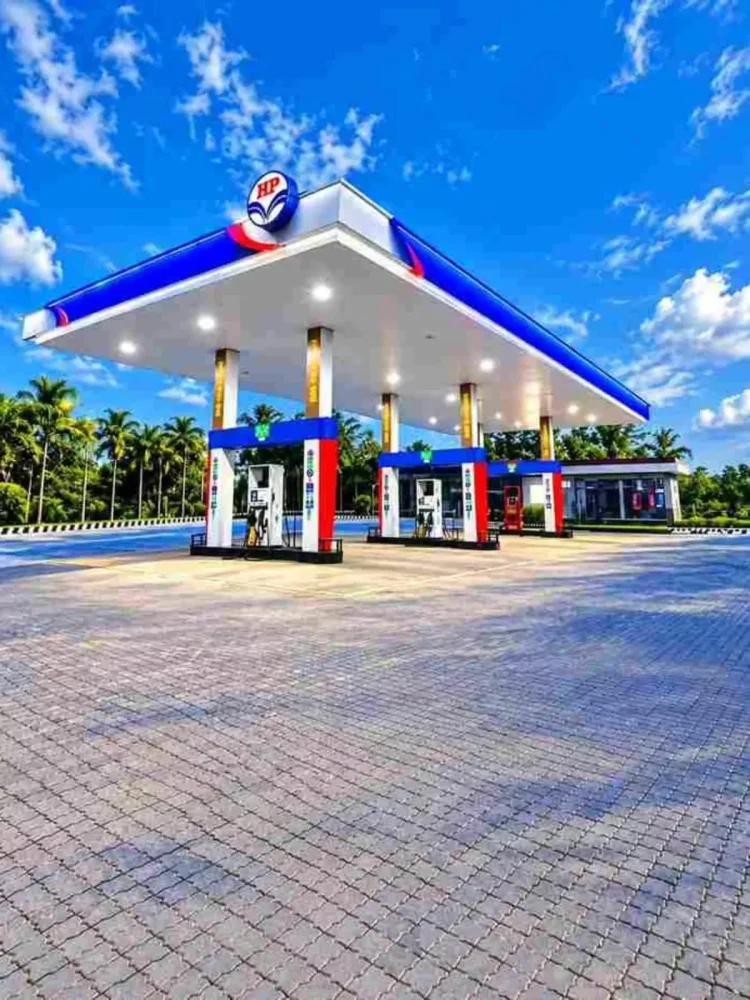
Use the first image as the exact reference for the person and the second image as the exact HP petrol pump background. Place the person naturally into the HP petrol pump scene without changing anything about her original appearance. Strictly preserve her exact face, facial features, skin texture, hairstyle, hair color, body shape, clothes, shoes, handbag, pose, proportions, and identity exactly as in the original photo—no beautification, no face alteration, no outfit changes, and no AI-looking details. Only composite the person realistically into the petrol pump background with natural perspective, accurate scale, matching lighting, shadows, reflections, and realistic color grading so she looks genuinely photographed at the location. Keep the HP petrol pump background authentic and unchanged, and make the final image a 3:4 portrait aspect ratio in high quality and photorealistic detail.
"Ultra-realistic nighttime photograph of a modern HP petrol station, captured in vertical portrait composition. A large white fuel-station canopy dominates the upper-middle frame, featuring bright blue LED edge lighting and clean red-blue branding accents. Multiple fuel dispensers are arranged beneath the canopy, illuminated by bright white ceiling lights. The HP logo is clearly visible on the top of the canopy. The foreground is a large empty paved forecourt made of interlocking grey brick tiles, creating strong perspective lines toward the station. Palm trees and subtle greenery are visible along the left background, softly illuminated by warm street lights. Deep black night sky with no visible stars, realistic artificial lighting, natural shadows, crisp architectural details, balanced exposure, slight cinematic atmosphere, professional DSLR photography, 24mm wide-angle lens, HDR, high dynamic range, sharp focus, photorealistic textures, realistic reflections
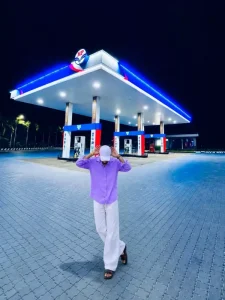
Use the first photo as the exact reference for the person and the second photo as the background/location. Place the same person from the first image naturally into the second image, standing in front of the HP petrol pump at night in the same open-arms pose. Keep his face, hairstyle, skin tone, body shape, clothes, hands, arms and overall proportions exactly the same as the first photo - do not change or regenerate his face. Match his height and scale naturally with the petrol station environment. Make the lighting, shadows, reflections and perspective perfectly consistent with the night-time petrol pump scene. Keep the large petrol station canopy, pumps, trucks, road and surrounding lights clearly visible in the background. Create a highly realistic DSLR-style composite with sharp natural details, realistic skin and fabric texture, cinematic night lighting, subtle blue/red petrol-pump glow, natural ground shadows and reflections. The final image must look like an authentic photograph
Where can you use the petrol pump photo?
You can utilize it for various types of social media content. For instance, it would look perfect as an Instagram profile picture (DP). You can also use it in Instagram Reels—it would be an excellent choice if you create travel or car-related content. Additionally, it works great for YouTube thumbnails or general social media profiles.
Process Of Creating This Ai Image?
We will carry out this editing in two stages, as two different methods were demonstrated, and both yielded perfect results. However, many people might want to create edits with this specific type of background, while others might prefer the direct ChatGPT-based editing style. You can choose whichever method works best for you.
How To Create Image Using Chatgpt?
The first method involves opening ChatGPT and clicking on the ‘plus’ option. You simply upload a reference photo, paste the prompt, and hit generate; it will then create your final image. This is a straightforward way to get the desired result. While this method yields good results, if you want to do something different—something unique to make your editing perfect—let me share a second method as well.
Second Method Of Creating Image
The second method works like this: first, copy the prompt provided in the article. Then, go to ChatGPT and paste that prompt. Click on the plus (+) icon to upload a reference image. Once you generate the result, it will create your final photo—delivering excellent quality.