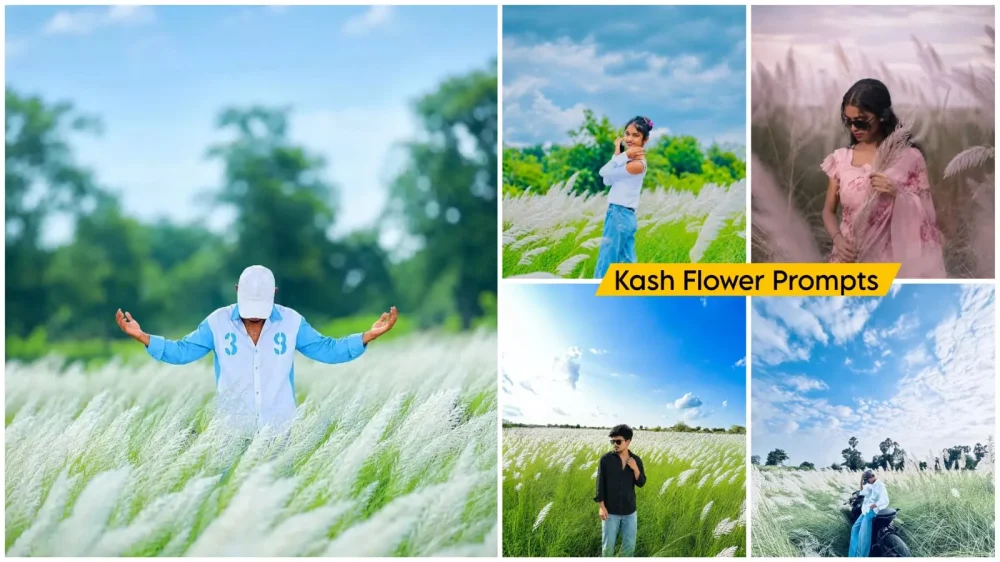
Kash Flower Ai Photo Editing Prompt – You may have noticed that photos featuring Kash flowers are going viral; people on social media really love this style of imagery. I am going to show you an editing technique that allows you to replicate this look and create your own photos in that exact same setting. If you want to learn something unique, this guide is for you—I will provide detailed information on the editing process so you can easily achieve professional-grade results. You simply need to follow the straightforward steps I’m about to outline; just follow along as I explain.
Details Of Kash Flower Ai Photo Editing Prompt
Now, speaking of flower editing, this flower is completely different. You don’t get multi-color options, like red or yellow. You only get one simple, constant color: white, and then around it, you see greenery or a completely lush green environment. This is because it grows in a different location. People don’t plant them. They simply grow in the fields, and when you go there and take photos, if the background is right, the photo looks amazing. Now, many people don’t have this option to go and take photos, so there’s an option for that: follow this article here. It will tell you such methods that you can easily transfer your normal photo to that location. If you want to do it naturally, right?
Process Of Creating This Floral Images
You need to understand that this editing process works in two ways. The first is a direct method where you simply use a prompt along with your photo, and it generates the final image for you. The second option involves using a specific background; your photo is transferred from its original state and placed onto that new background. It is essential to understand both of these processes if you want to create such professional-looking photos.
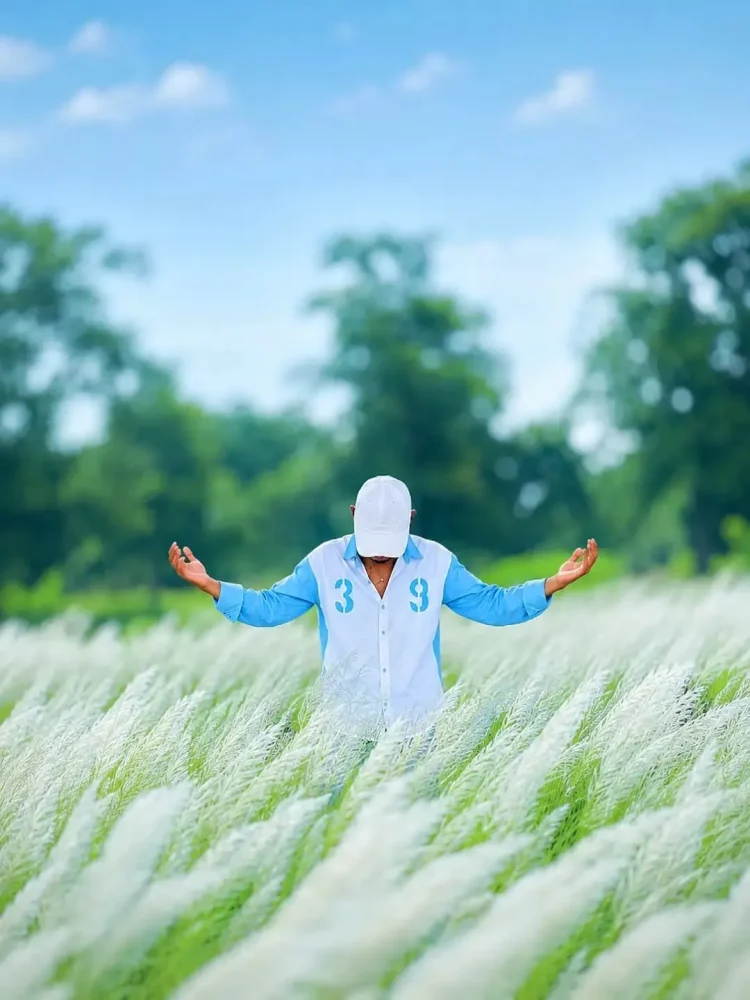
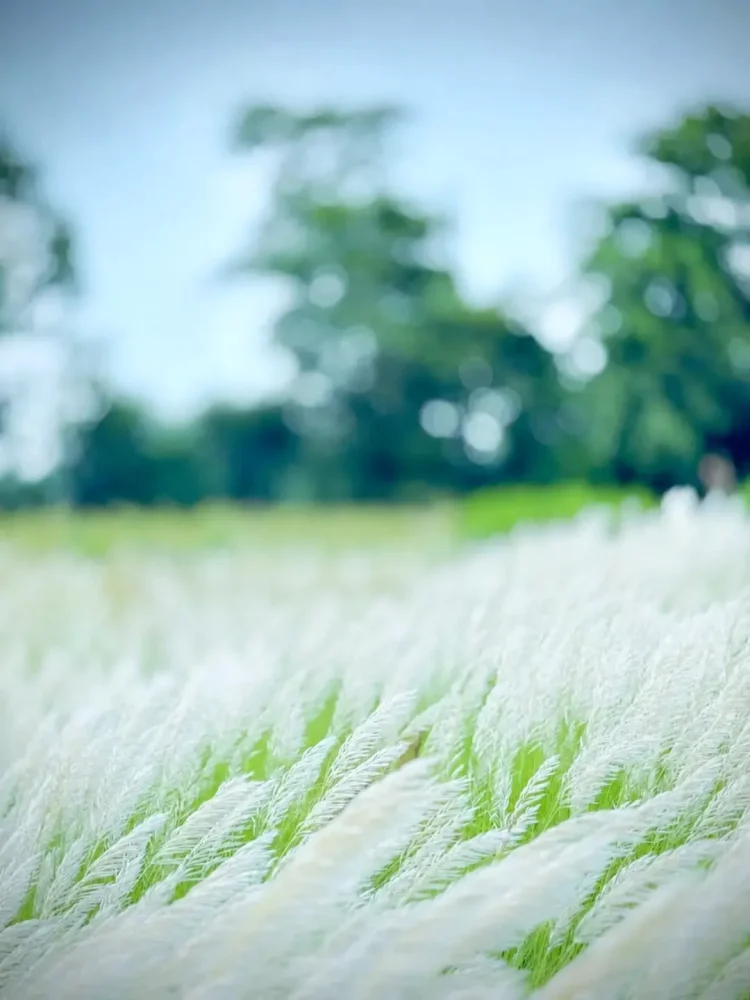
Add the background from the second photo tothe first photo.Keep the person exactly the same as in the original photo same face, facial features, hairstyle, expression, body proportions, pose, outfit, and accessories, Do not alter, beautity, reshape, or retouch the face or body.Make the person fit naturally into the second photo's background with the exact same pose and position. Match the lighting, shadows, perspective, skin tone, colors, depth of field, and overall image quality perfectly, The final result must look completely photorealisticand seamless, as if the photo was originallytaken in that location. Preserve all naturaldetails and make it high-quality DSLR-stylephotography.
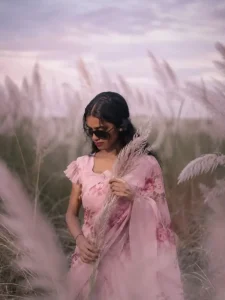
A realistic portrait of a beautiful

Indian woman standing in a field of tall, feathery pampas gass (Kash flower field). She is wearing an elegant pink

floral saree with ruffled sleeves and dark stvlisk sunglasses. She holds a stem of fluffy pampas grass near her chest, The background features a tall field of wild grass under a soft, overcast, misty sky with a muted, pastel pink and purple color

tone.

Dreamy atmospheric lighting, shallow depth of field, soft blur in the foreground, highly detailed,

photorealistic 8k

photo.
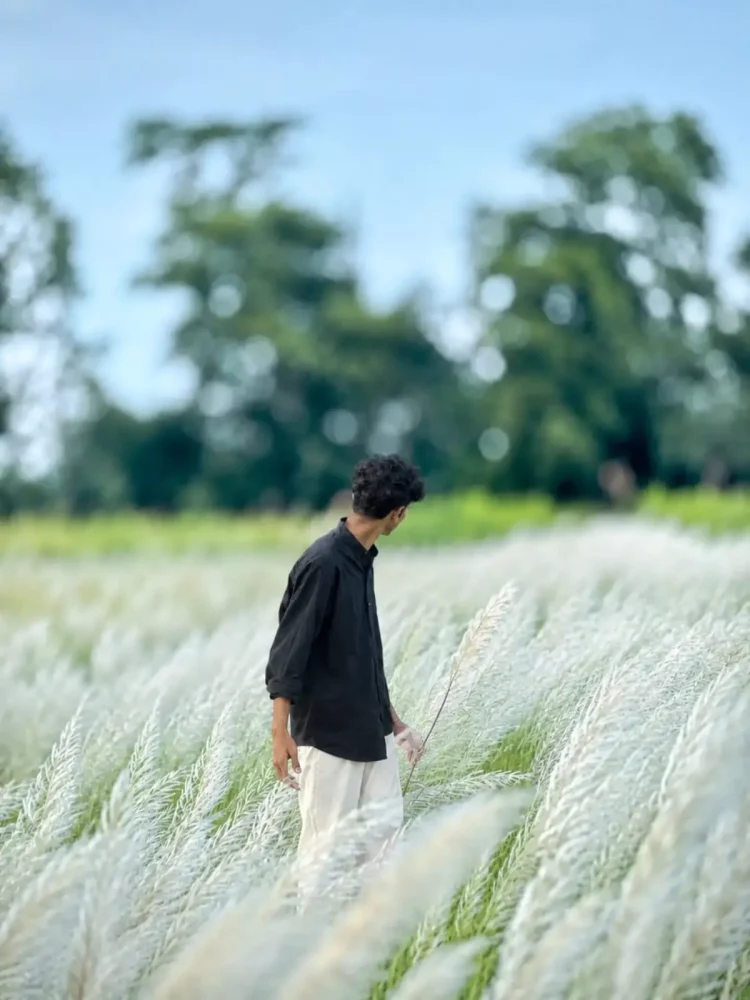
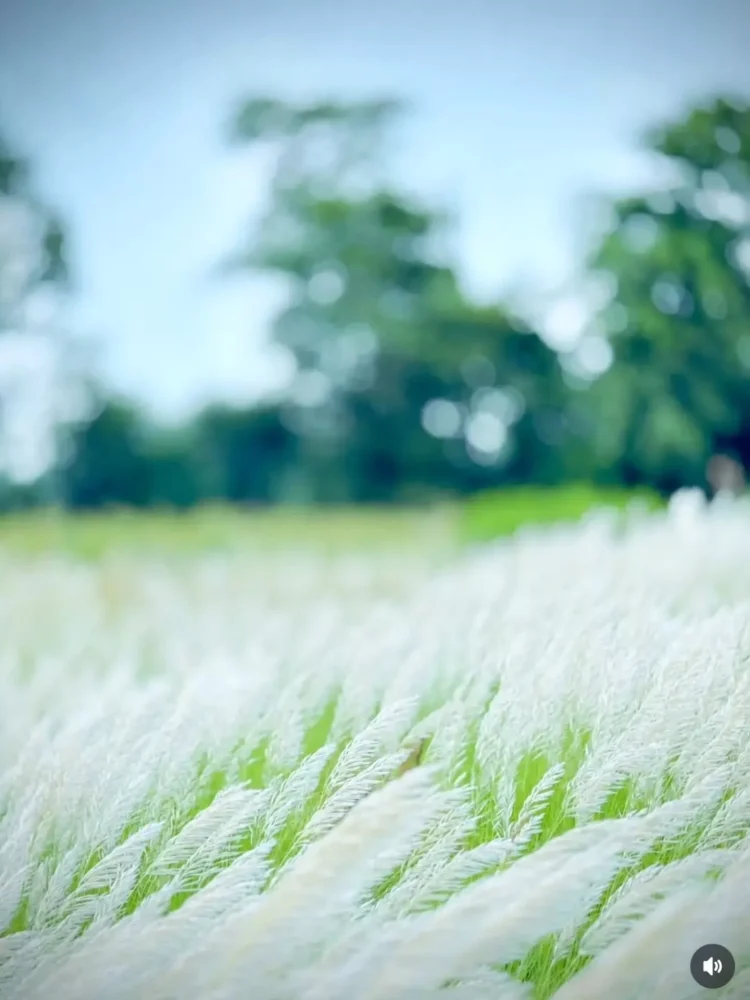
Add the background from the second photo tothe first photo.Keep the person exactly the same as in the original photo same face, facial features, hairstyle, expression, body proportions, pose, outfit, and accessories, Do not alter, beautity, reshape, or retouch the face or body.Make the person fit naturally into the second photo's background with the exact same pose and position. Match the lighting, shadows, perspective, skin tone, colors, depth of field, and overall image quality perfectly, The final result must look completely photorealisticand seamless, as if the photo was originallytaken in that location. Preserve all naturaldetails and make it high-quality DSLR-stylephotography.
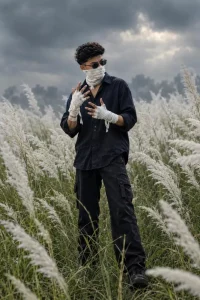
cinematic, dramatic medium shot of a young man standing amidst a dense field of tall white kans grass (kash phool). His face is partially covered with a white cloth wrap, and his hands are heavily wrapped in white bandages, posed in front of him with fingers spread in a stylistic, intense gesture. He is wearing a man dark navy blue or black oversized casual shirt. The background is a moody, overcast, hazy sky. Man
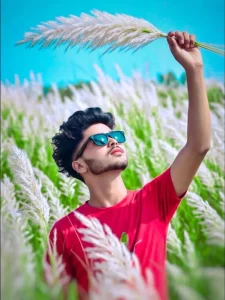
A young South Asian man with stylish voluminous black hair and a neatly trimmed beard, wearing a bright red t-shirt and dark teal sunglasses. He is standing in a lush field of tall, white, fluffy Kash phool (pampas grass). He is holding a long white feather-like grass stalk high above his head with one raised hand. Upward camera angle, vibrant bright blue sky, sunny day lighting, vivid high-contrast colors, sharp focus on the man, naturally blurred background (bokeh effect), portrait photography, 8k resolution.
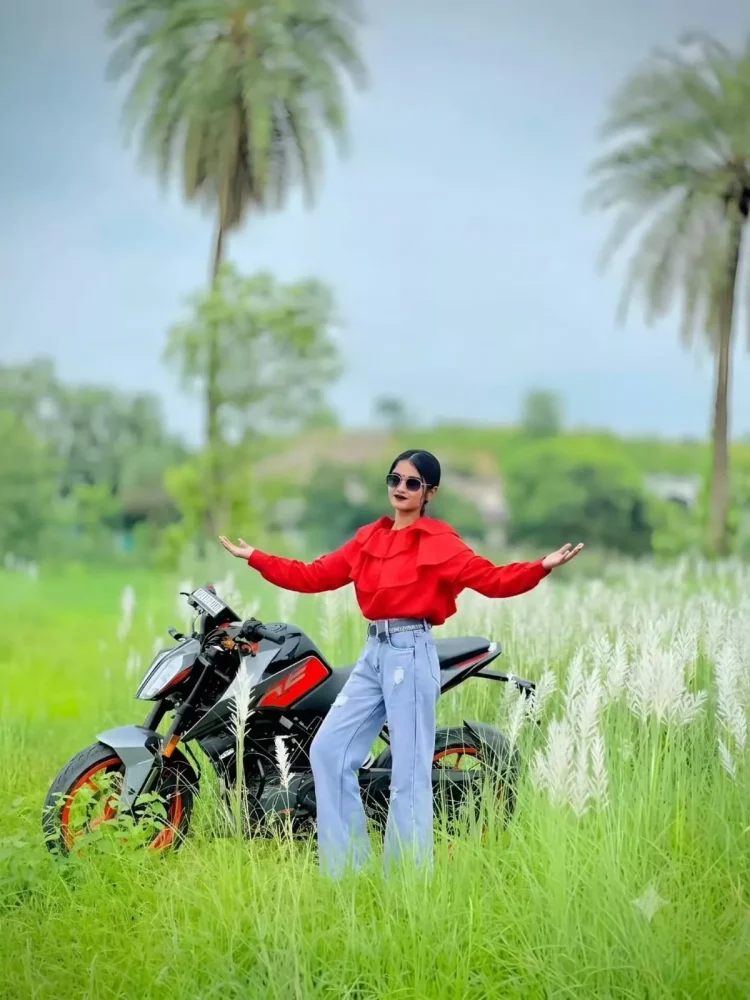
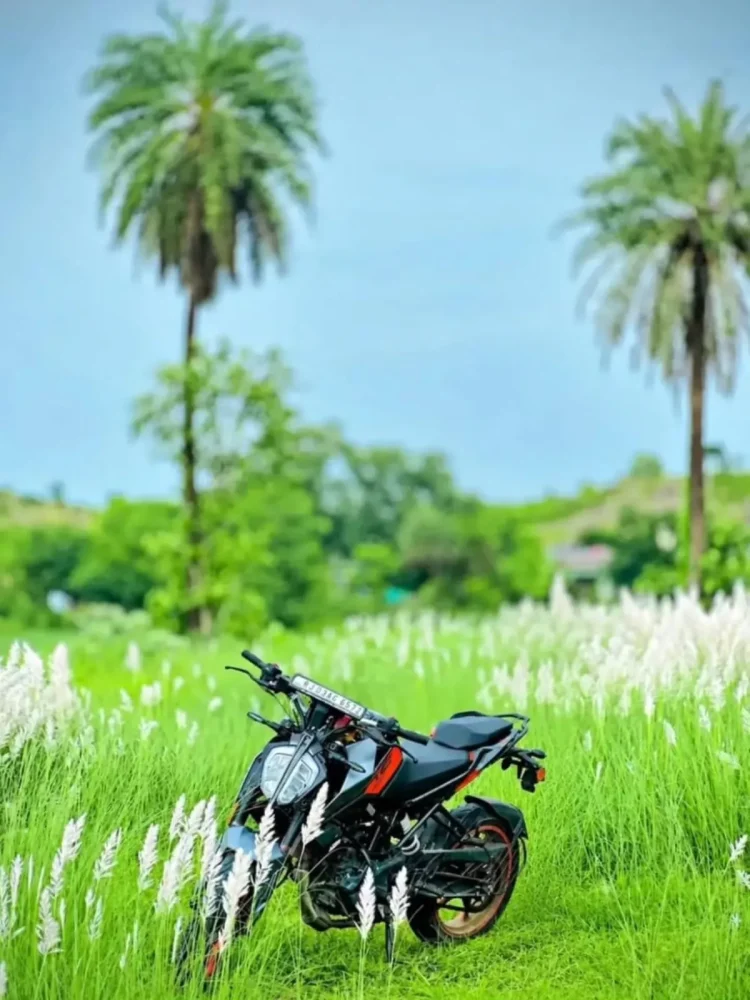
woman in red ruffles and blue wide jeans, posing arms wide with sunglasses, next to a black and orange motorcycle in a green field of tall white kashful grass, under an overcast sky with palm trees."
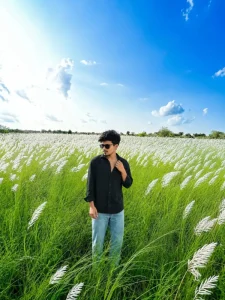
Ultra-realistic high-quality outdoor portrait of a young Indian man standing naturally in a vast green field filled with tall white Kash grass (Kans/Kaash flowers), under a bright vivid blue sky with soft white clouds. Preserve the person's face, hairstyle, skin tone, facial features, body proportions, and overall identity exactly like the reference photo. He is wearing a black full-sleeve button-up shirt with an open collar, light blue relaxed-fit jeans, and black sunglasses. One hand is casually touching the shirt collar while the other hand hangs naturally by his side, looking slightly to the side with a confident, calm expression. Wide scenic composition with the subject centered, tall grass surrounding him, distant green trees on the horizon, bright natural daylight, realistic shadows, detailed grass and flowers, cinematic depth, sharp facial details, professional DSLR photography, natural skin texture, ultra-detailed, 4K/8K quality, photorealistic, Instagram premium photograph
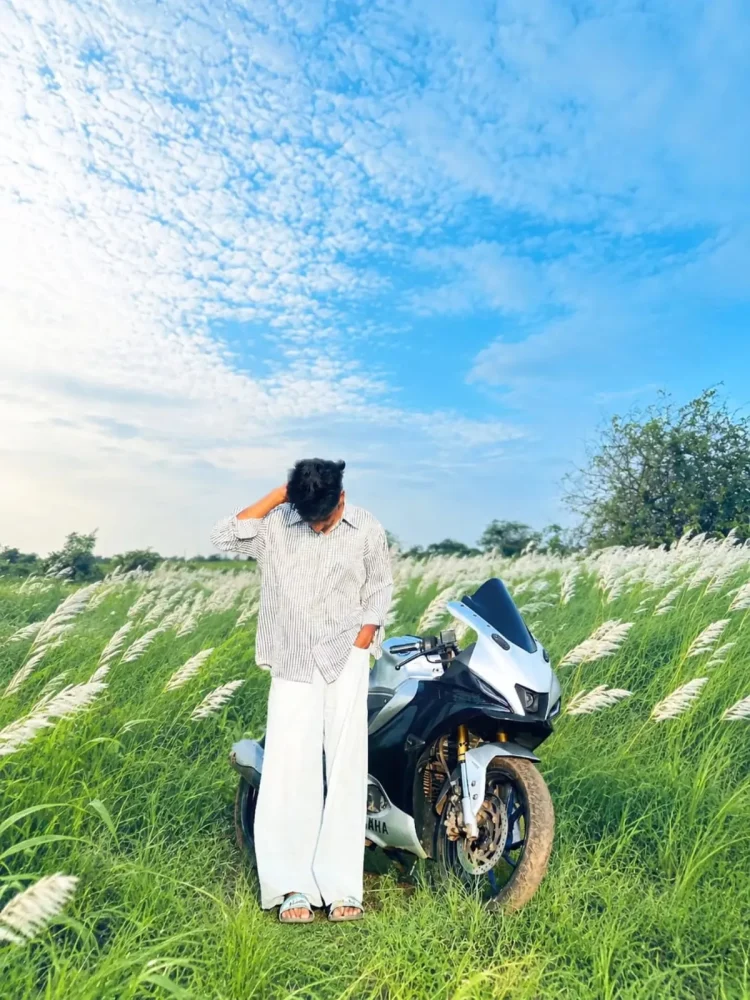
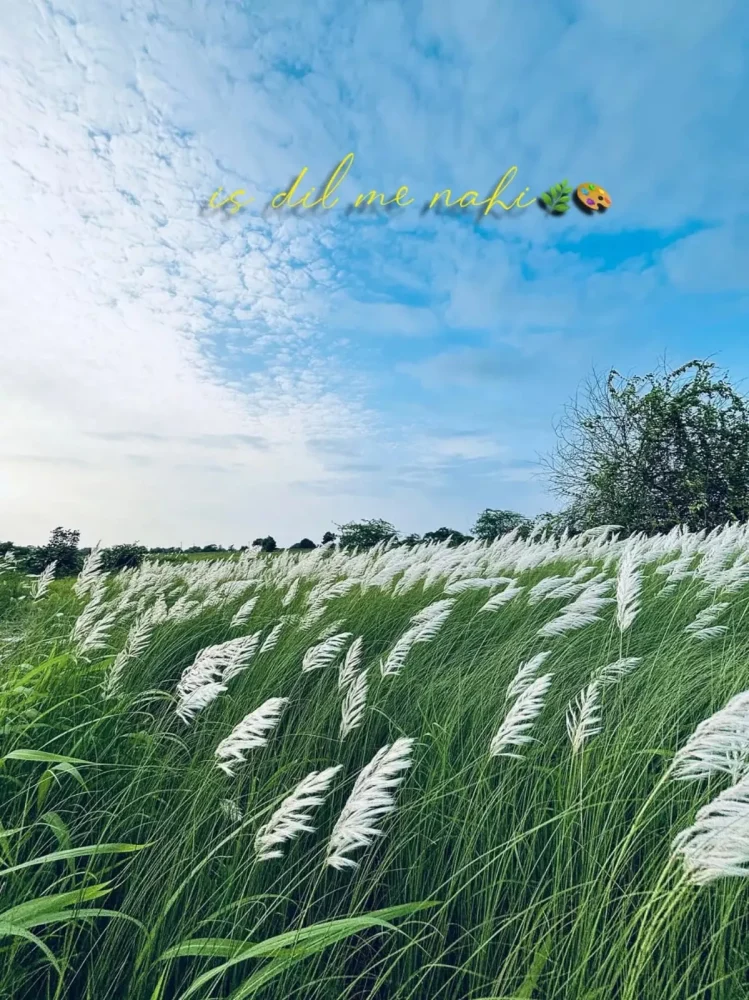
Add the background from the second photo to the first photo.Keep the person exactly the same as in the original photo same face, facial features, hairstyle, expression, body proportions, pose, outfit, and accessories. Do not alter, beautify, reshape, or retouch the face or body.Make the person fit naturally into the second photo's background with the exact same pose and position. Match the lighting, shadows, perspective, skin tone, colors, depth of field, and overall image quality perfectly. The final result must look completely photorealistic and seamless, as if the photo was originally taken in that location. Preserve all natural details and make it high-quality DSLR-style photography.
More Backgrounds –
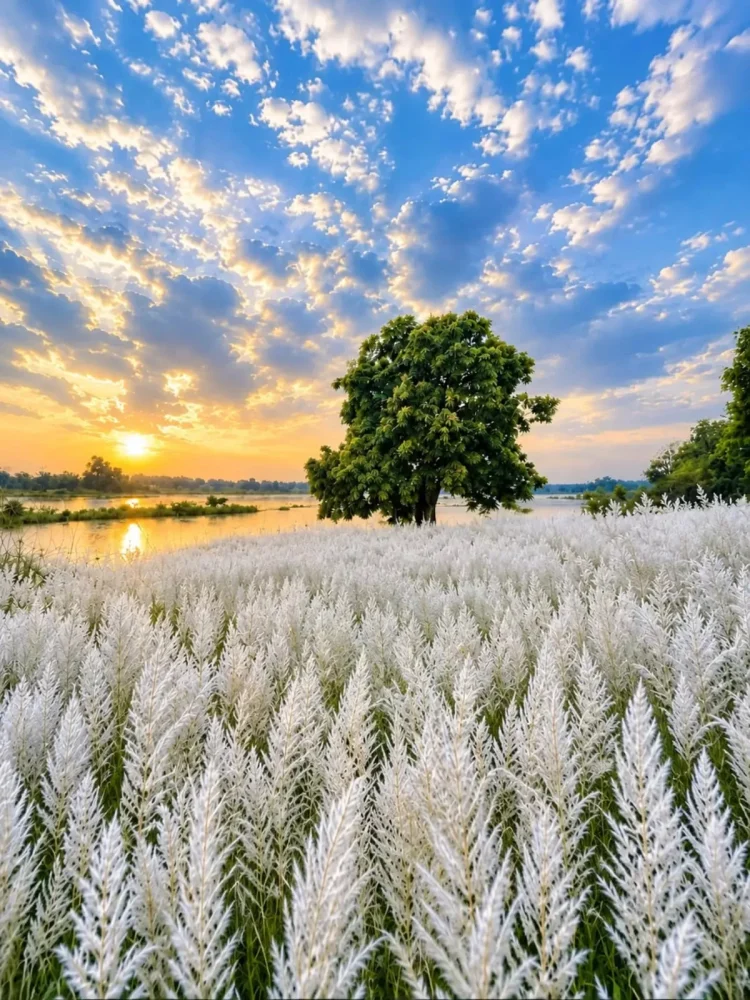
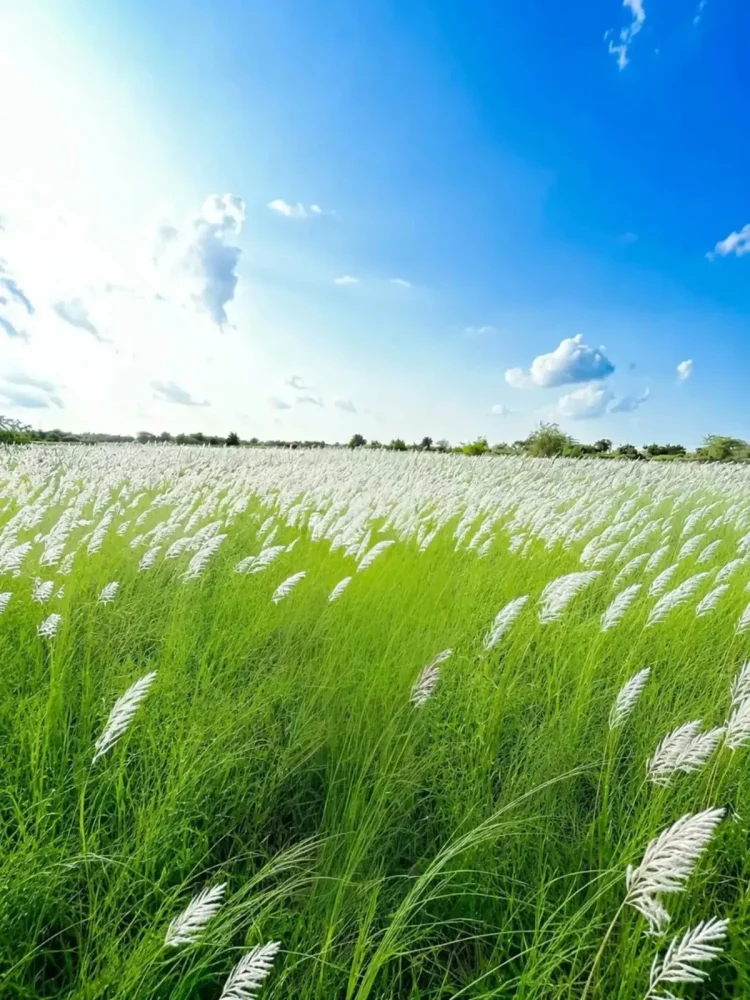
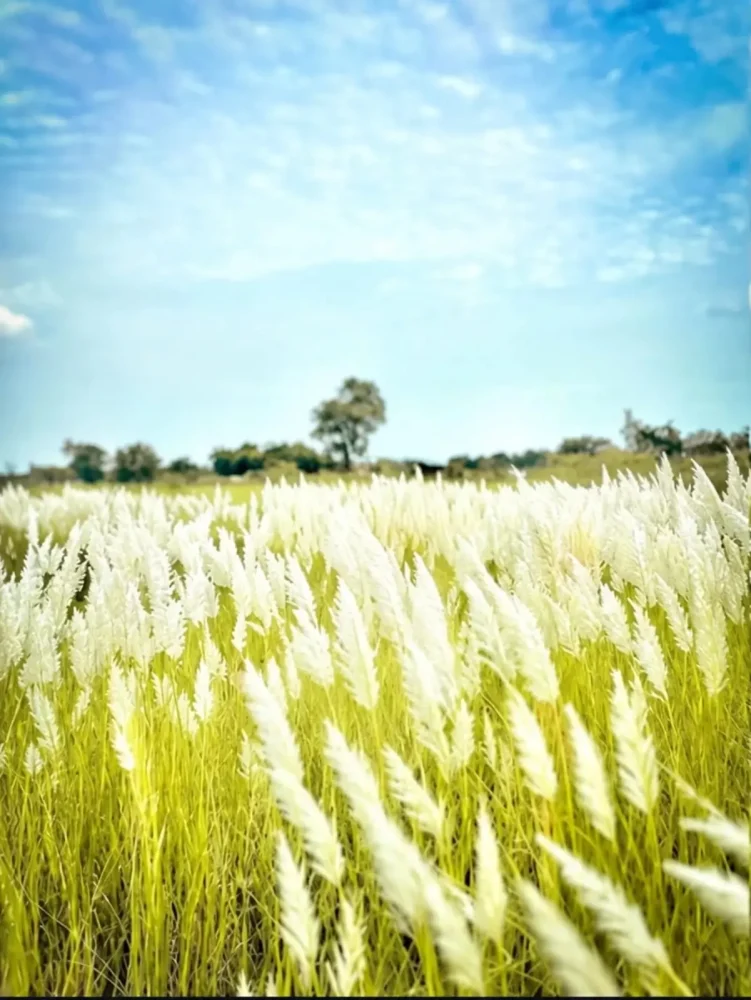
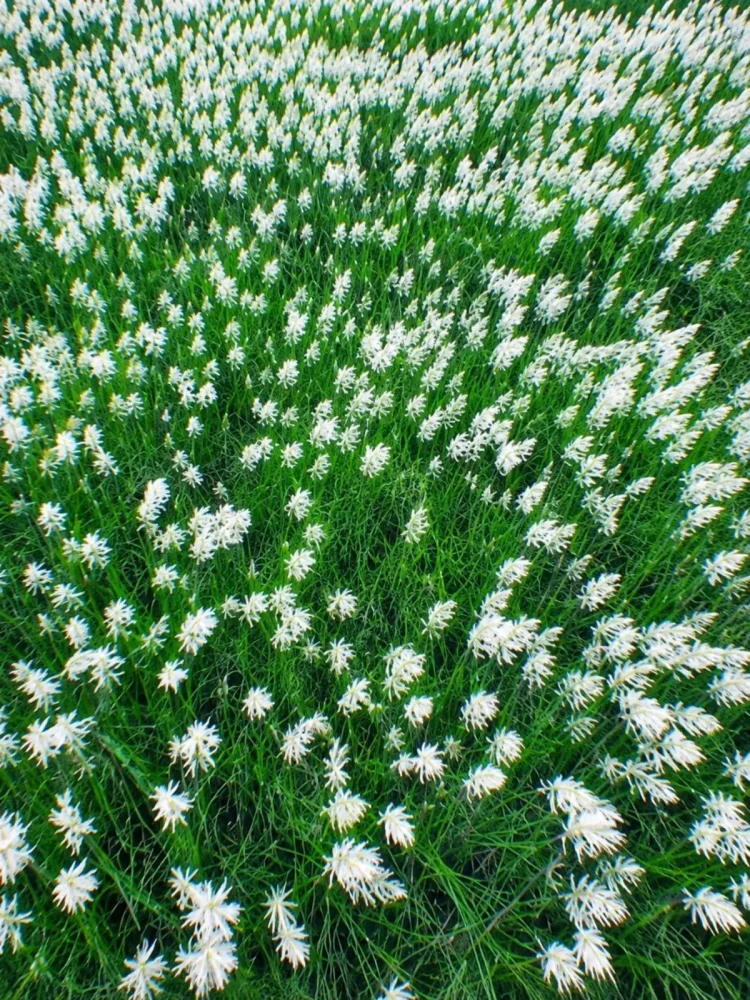
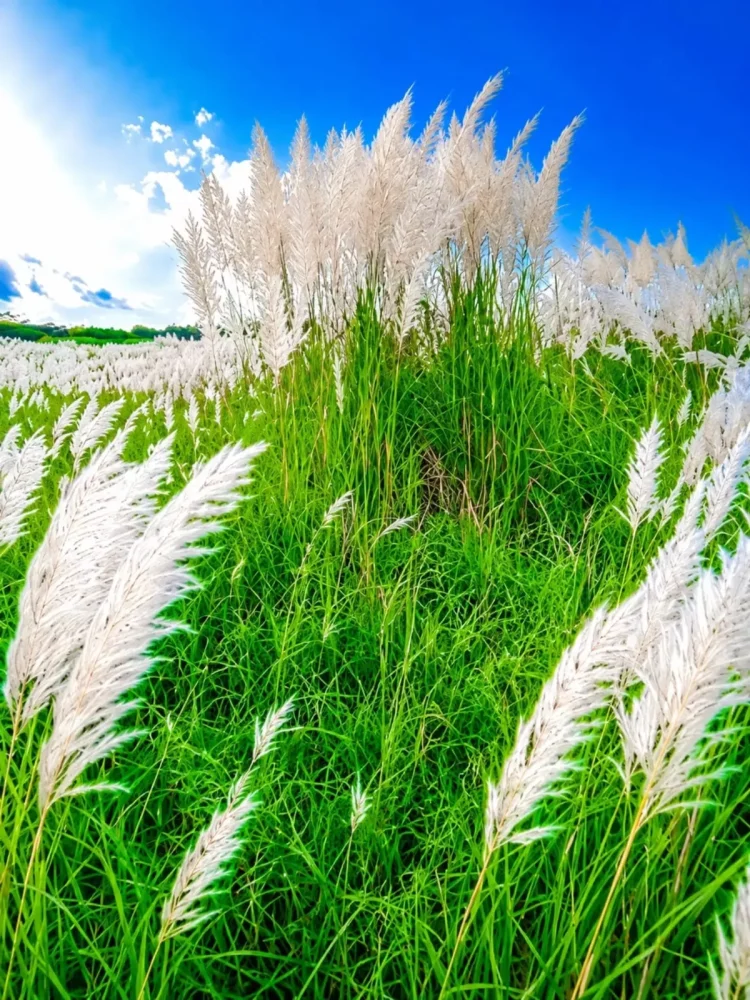
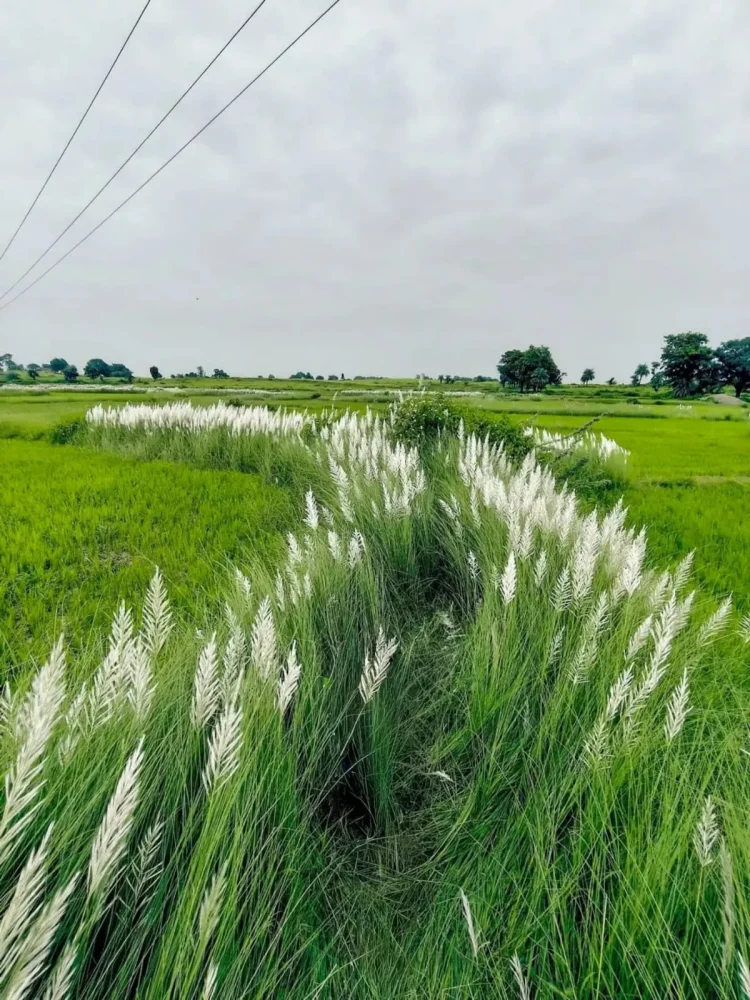
Add the background from the second photo to the first photo. Keep the person exactly the same as in the original photo same face, facial features, hairstyle, expression, body proportions, pose, outfit, and accessories. Do not alter, beautify, reshape, or retouch the face or body. Make the person fit naturally into the second photo's background with the exact same pose and position. Match the lighting, shadows, perspective, skin tone, colors, depth of field, and overall image quality perfectly. The final result must look completely photorealistic and seamless, as if the photo was originally taken in that location. Preserve all natural details and make it high-quality DSLR-style photography.
How To Create This Image?
Let’s first understand the editing process: you are provided with a simple prompt and a reference photo. Copy that prompt, then open ChatGPT. Click the plus (+) icon to upload your reference photo, and then generate the image using the prompt. This will produce a final image with excellent results and flawless editing—eliminating the need for manual background adjustments. If anything is lacking, simply ask for specific adjustments, and it will refine the image to give you an even better final result.
How To Create Image Using Background?
The second process involves using a specific background alongside the provided prompt; you will need to save that background image first. Then, you need to upload both your photo and the saved background image to ChatGPT. I have shared various types of backgrounds; you can save one and create your image against that exact background using a single prompt—which I have also provided. Simply paste the prompt there, and upon generating, your photo will be automatically adjusted onto the background and ready to use. That is how you can handle this editing process.
Conclusion
I hope you have understood this editing trend. I have explained the editing process and all the details to you. If you understood it, please let us know in the comments, and we will bring you more edits like this; if you face any issues, feel free to ask us in the comments. We can bring you even better editing content in the future.