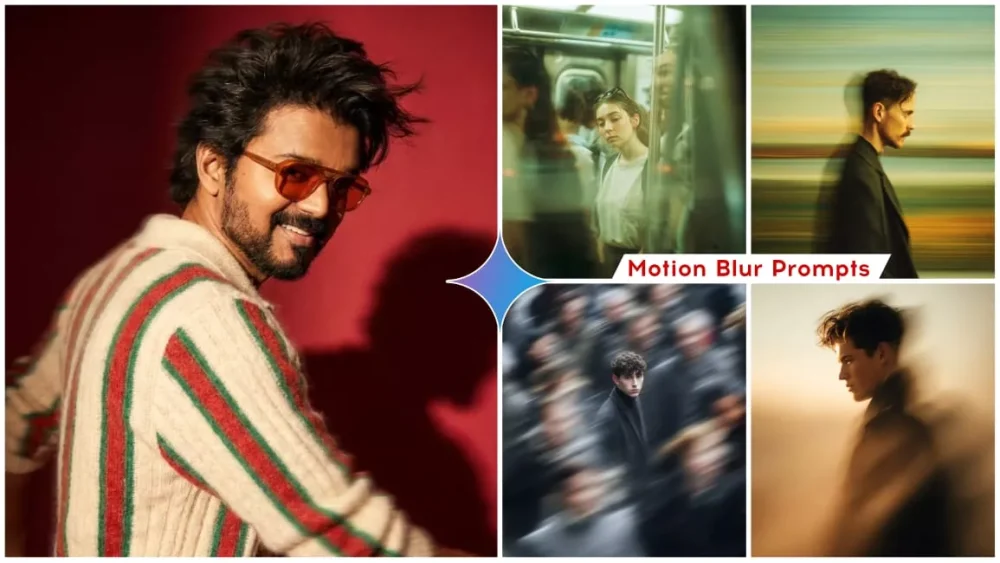
Google Gemini Motion Blur Aesthetic Ai Photo Editing Prompts – These days, creating photos is all the rage. Everyone is creating photos in their own style. In particular, you’ll see that photos with a blurred background are going viral right now. And let me tell you, if you post this kind of photo on social media, people will love it. Because I’m going to show you how to edit photos in completely different styles, which we’ll learn to create using Google Gemini. It’s the easiest way to create them. We have the prompt, we have the photo, and we just generate it. Our photo is ready. If you want to learn how, I’ll explain in this article how you can create them and get great results.
Why We Use Gemini For Motion Blur Edit?
Now, most people are asking why we would create a motion blur photo using Google Gemini. Your question is perfectly valid. Why would you create one when the editing is already done for you? You can edit it yourself in your own way, but let me tell you, you can edit it anywhere, but you won’t get results like this anywhere else. I’ll explain: when you use something like ChatGPT to create an image, it often misrepresents your face. However, with Google Gemini, the face is matched perfectly. If you use your face correctly to generate the photo, it looks natural and is preserved exactly as it is, without any excessive editing. That’s why you’ll see many people prefer Google Gemini for this type of editing.
new trend gemini photo prompts
How To Prepare Your Photo
Let’s prepare to create motion blur photos. We’ll explain what kind of photos you need to have ready. For the best results, your photo should be clear and sharp. This means your photo shouldn’t be blurry already. The AI needs a clear image to work with. Your face should be centered and facing forward in the photo. Take a picture and save it. Use this photo as a reference for all the images you generate with Google Gemini. By using this clear reference photo, you’ll always get excellent results with a clear face. Also, the lighting in your photo should be good. There shouldn’t be any masks or anything covering your face. If you’re wearing glasses, take them off, as you can add your preferred glasses later.
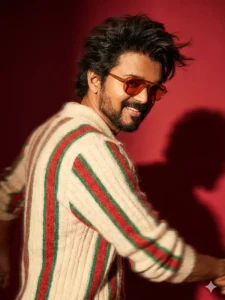
Use the images uploaded as your reference for face features, beard, hairstyle and make a cinematic editorial fashion portrait of a man, dynamic mid-turn pose, heavy motion blur effect, speed lines. Wearing a fuzzy ribbed knit sweater with vertical cream, red, and Black stripes. Messy windblown hair. Sun-drenched lighting, harsh shadows, deep red studio background. High fashion photography, vogue style, 35mm film grain, highly detailed texture --iw 2
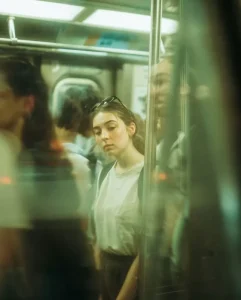
A cinematic, high-quality photograph of a young woman standing in a crowded subway train, captured in a mid-profile, chest-up shot. The lighting is dominated by a hazy, fluorescent green tint, creating a moody and melancholic atmosphere. The woman is looking slightly away with a quiet, contemplative expression. The foreground is heavily layered with out-of-focus glass reflections and blurred movement of other passengers, giving a sense of being lost in a crowd. The color palette features washed-out greens, muted neutrals, and pale yellows, reminiscent of early 2000s cinematic film stock. Shot on a 35mm film camera with a shallow depth of field, visible film grain, and soft lens flare. The overall vibe is one of urban isolation and quiet nostalgia.
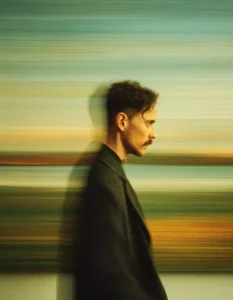
A cinematic, hyper-realistic photo shot on a Canon R6, 50mm lens at f/2.8. The subject is a Gen-Z male in a mid-profile shot, standing with quiet conviction amidst a chaotic protest. He is holding a cardboard placard down by his side. His face is in sharp focus, revealing fine skin pores and a serious expression. The background is filled with a thick smoke haze and flat daylight, with a crowd of protesters chanting and waving signs, all blurred into a smooth, abstract motion. The color grading is inspired by the movie "Children of Men," featuring a desaturated palette of muted greys and dirty whites. High-fidelity textures, realistic physical motion blur, 8k resolution, cinematic realism. --ar 4:5
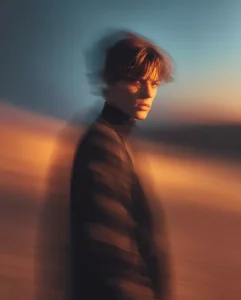
"A cinematic editorial portrait of a young man with sharp features, wearing a black turtleneck. The image features a heavy 'motion blur' and 'long exposure' effect, creating a ghosly streak behind him. Warm golden hour sunlight hits his face, contrasting with a soft blue twilight sky in the background. Ethereal, moody atmosphere, high fashion photography style, shot on 35mm lens."
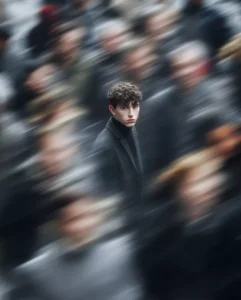
"A cinematic portrait of a young man with curly hair and a neutral expression, standing perfectly still in the center of a crowded city street. He is wearing a dark grey textured wool overcoat over a black turtleneck. The background consists of a dense crowd of people, but they are captured with a heavy radial motion blur, creating a 'zoom-burst' effect that makes the man appear as the only sharp and stationary figure. The lighting is moody and overcast with cool tones. High-resolution, photorealistic, shot on 85mm lens, shallow depth of field, urban atmosphere, emotional solitude."
How To Generate Your Photo
See how to create photos. To create photos, I’ve shared different prompts in different styles. Choose whichever you like. Copy it. Then, you’ll find a button below for Google Gemini. You can go directly to the website. I’ve included this button in all the AI editing articles I’ve taught. You can click on it to go directly there. Once there, first paste the prompt. You’ll find an option to paste it below. Then, go to the plus option and upload a selfie or any other photo. After that, generate the image. If you upload the photo as I instructed, you’ll get excellent results. Your photo will be ready with a 100% face match.
What Can You Do To Get Better Results?
If you want good results, first you can change the styling of your photo. For example, if you’re standing straight in the picture, you can try a side angle so that your photo is taken from the side. You can also customize the background to your liking. This will ensure that your photo is always ready in a unique style and won’t look like a copy. People appreciate this, which is why I’ve shared more than one prompt here.