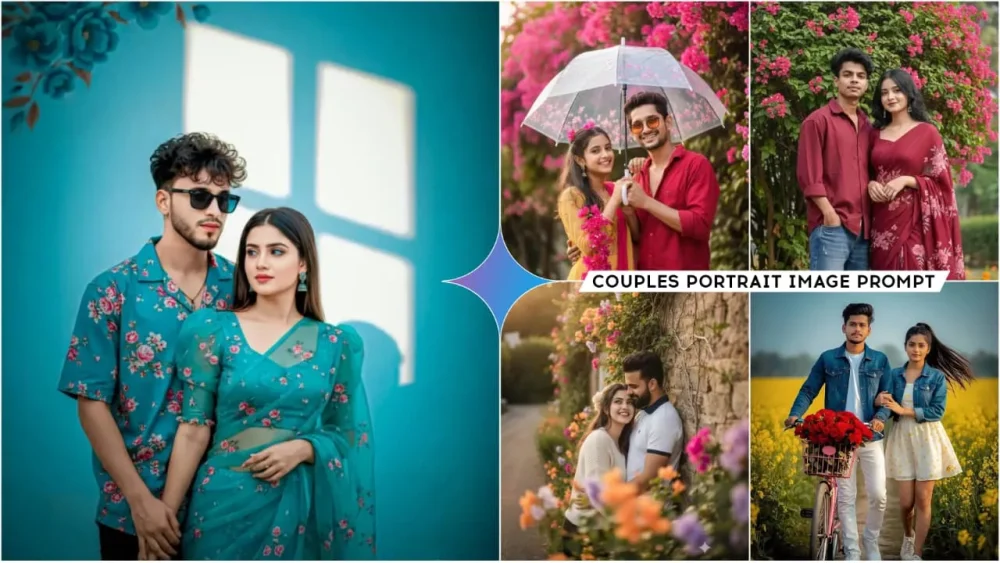
Google Gemini Ai Couple Portrait Photo Editing Prompts – If you want to create a natural look in your photos, especially couple photos, this is a very difficult task. However, using Google Gemini, you can create such professional-looking photos. The AI automatically adds all these details to your photos, enhancing them so smartly that you won’t even know these photos were generated here. I’ll provide some here. You can see their details yourself and then tell us. Do you think they were generated here? After seeing them, it’s likely that someone hired someone to click such photos. But I’ll tell you step by step, and only through that will you understand. You can generate such photos, and they also use Google Gemini.
Details Of Google Gemini Ai Couple Portrait Photo Editing Prompts
Look at how these photos are ultimately created. Photos have to be used, and here, two photos of a new couple have to be used. It then carefully reads the faces in both photos. Then, it carefully studies the background. Based on the prompts you used, it applies these elements and details to your photo. Then, it gives you a final look. Our couple photo is ready, something like the one I’ve shown here. In this article, I’m going to explain the process. How are these photos added? How can we generate our image with such perfect faces? Because among the number of people we need to generate, there are many whose faces don’t match. This is a big problem, so I’ll tell you how to fix it.
How To Perfectly Match Your Face
Yes, as I mentioned, your face doesn’t match. What’s the solution? Look, the simple solution to reducing the face is that your face should be clearly visible in the photo we use. As I mentioned, using a recent photo will be best. What you need to do is open your camera immediately and take a selfie of your face. Do the same with your partner’s photo. Now you’ve used this photo. Okay. Now, follow the prompt here. Now, add a sentence at the end of the prompt. For example, you need to make the face match 100%, just like I provided in the reference image. Add this sentence and you’ll get a 100% accurate result. Your face won’t change at all.
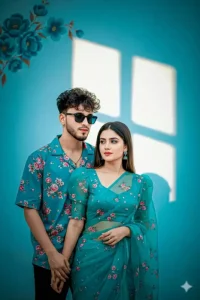
Convert the above image into ultra realistic portrait of both should be in front of white wall in a romantic pose in outdoor .girl should wear teal blue with look flowers puffed blouse transparent saree. guy should wear teal blue with pink flowers half sleeved shirt. he should wear coolers .there should be teal blue with pink flowers in top left back in the wall .there should be sunlight in the form of window in background wall .teal blue film tone. cinematic (do not change the faces)
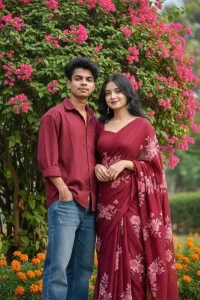
Create A couple photo, styled down, stands outdoors. Girl is wearing a maroon saree with pink floral patterns and a matching long-sleeved blouse.
Boy dress not change.
In the background, there's a vibrant bush with numerous bright pink flowers and some green foliage, along with hints of a clear sky and another plant with orange and yellow flowers. keep our face 100% same as in the reference image.
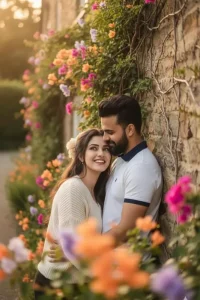
Hyper realistic overhead 9:16 close-up of young couples (face from picture 100%) together in romantic very close leaning against an Ivy-covered stone wall of an old countryside cottage during golden hour. she smiling with her head slightly tilted back,wearing a texture cream knit sweater layered. The flowering wines are in full bloom with orange Magenta, and lavender hues, softly blurred in the foreground. Front facing.
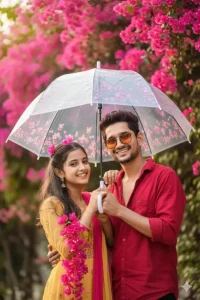
A joyful young boy and girl standing outdoors holding a transparent umbrella decorated with pink flowers, with vibrant bougainvillea blossoms falling all around her. both of them should not change their clothes. She is brightly, chetas The background is filled with lush pink flowering trees, creating a dreamy, romantic, and lively atmosphere. Captured in a candid vibrant, and cinematic photography style with natural light and shallow depth of field
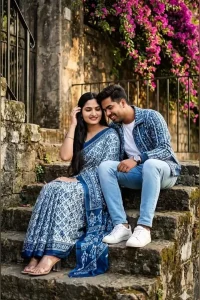
"8K ULTRA-REALISTIC OUTDOOR COUPLE PORTRAIT ON RUSTIC STONE STEPS. SAME YOUNG WOMAN FROM THE REFERENCE IMAGE (EXACT FACE), LONG DARK HAIR, WEARING A BLUE-AND-WHITE PATTERNED SAREE AND CLEAR-STRAP BLOCK HEELS. BESIDE HER SITS A HANDSOME YOUNG MAN IN A MATCHING BLUE-WHITE PATTERNED CASUAL JACKET, WHITE T-SHIRT, SLIM LIGHT-BLUE JEANS, AND WHITE SNEAKERS. SOFT SMILES, CLOSE SITTING POSE; WOMAN'S HAND NEAR TEMPLE, MAN LEANING SLIGHTLY TOWARD HER. BACKGROUND: OLD WEATHERED STONE WALL, DARK METAL RAILINGS, AND CASCADING VIBRANT MAGENTA BOUGAINVILLEA FLOWERS. WARM NATURAL LIGHTING, ROMANTIC MODERN COUPLE VIBE. I WANT EXACT MAN AND WOMAN SAME FACE AS, I UPLOADED NO ALTERATION 100% SAME. RATIΟ 9:16."
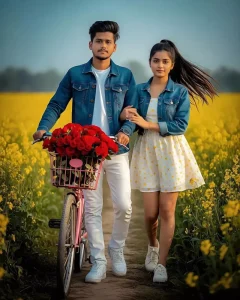
Ultra-realistic 8K cinematic portrait of a cute young Indian couple walking together on a narrow rural road surrounded by yellow mustard fields. Boy (same face reference) with slightly messy forward hairstyle, wearing denim blue jacket, white T-shirt, white jeans, and white shoes, holding a pink Ladies Ranger bicycle with a red rose bouquet in the front basket. Girl (same as reference photo) wearing blue cropped denim jacket and white mini dress with yellow star prints, high ponytail flowing.
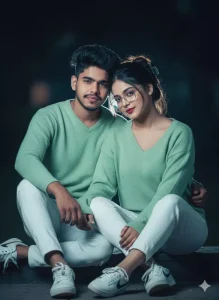
Hyperrealistic portrait full body (face 100% same as reference) of a young couples in early pastel green Deep v neck, Long hair in a loose bun with black claw clip, soft makeup, pink-red lips, clear glasses and nike sneakers. Together in romantic very close in soft smiles Sitting against night with direct flash creating a soft diffused glow and light skin reflection. Cool bluish tone, slight grain, sexy gaze, cinematic editorial 8K look. my image generate don't change face,
How To Use Google Gemini Ai Couple Portrait Photo Editing Prompts
Now, let’s see how you’ll create your own photo. If you’re a couple and want to create these viral photos, it’s quite simple. Follow all these steps and you’ll get great results. First, you need to copy the prompt here. Prompts are provided in different styles. Copy the one you like best. A copy button has also been added so you don’t have any problems copying. Then, you’ll find a button below, which is from Google Gemini. You need to go to the Google website and generate it. Click there and go to it. You’ll find several options. At the top, select “Create Image.” Then, go to the “Plus” option and select a photo. As I mentioned, you need a photo with these details. Upload that photo and then paste the prompt you just copied. Then, generate your photo. She will get ready in a completely professional manner.
Conclusion
Look, don’t make this mistake at all: over-smooth your photos, just like you’d see nowadays. Some time ago, there was a trend of CB editing, which had a lot of smoothness, but this doesn’t work nowadays. Avoid using these techniques at all, and avoid using unrealistic backgrounds that would appear in the background of your photos. All the details provided here, and all the photos I’ve taken, were done with perfect action. But I’m mentioning this because even if you’re editing custom ones yourself, don’t overdo it. Don’t overdo it with the sharpener. You don’t want to mismatch shadows here. You need to write these details in the prompt, including the type of shadows and their locations. Your photo will be exactly as you understand them.