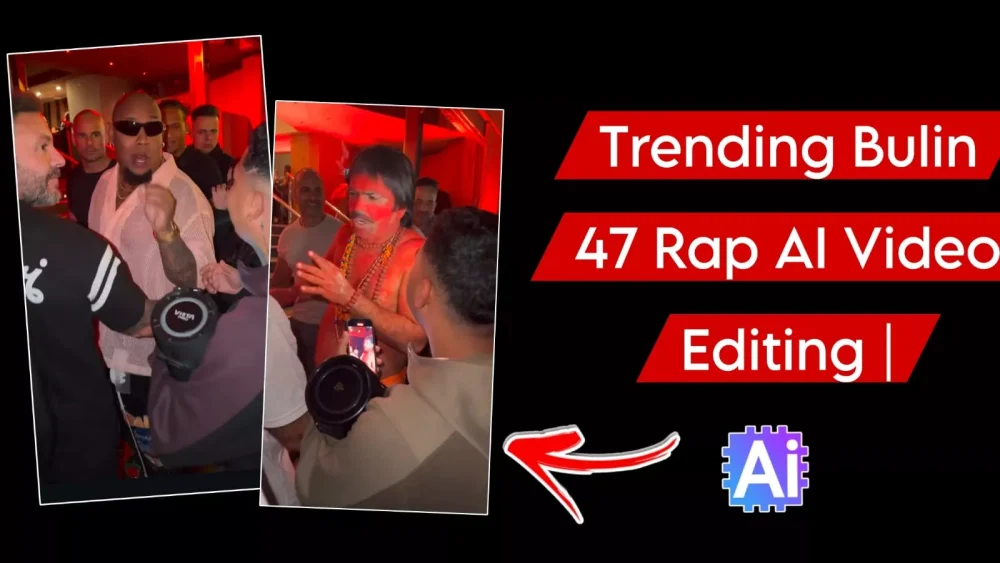
Bulin 47 Rap Ai Video Editing – You may have noticed such AI-generated videos going viral on social media. People are creating highly creative edits using freestyle rap songs, specifically by employing face-replacement technology. In this article, I will explain exactly how you can create these videos properly and without any hassle. If you want to achieve high-quality editing results, this article provides a detailed explanation to help you understand the process and execute your edits effectively. Let’s dive in and learn how to do this editing the right way.
Details Of Bulin 47 Rap Ai Video Editing
Let’s understand the nature of this editing style and how it is created; I’ll guide you through the process properly. You might have seen videos where a major creator or celebrity is walking, and the person following behind—or the one whose face appears in that spot—is actually you. You can superimpose your own face onto that body. Then, a specific type of song plays—often in a foreign language—yet it is going viral in India; people love it and want to create similar videos themselves because of this viral trend. So, I decided to show you how you can create a video like this too.
Methods Of Creating This Ai Video
To do this editing, we will use two methods and I will explain both of them properly to you and through that you will see that your editing is ready with absolutely hundred percent excellent results. In this, first of all we will use Google Flow. Our video is ready with exactly the same result through both of these and both are absolutely free. You do not need to pay any kind of charge in it. You just have to follow the steps which I am guiding you. With this, you will not see any kind of deficiency in the result. If you want to create a video with a good result, then follow the steps which I am telling you. Create it by following them.
Use the uploaded reference video, specifically its first 10 seconds, as the exact reference for motion, choreography, timing, composition, camera movement, framing, and scene layout MAIN CHARACTER: Replace ONLY the single central main character with Character Reference 1. Preserve the exact facial identity, facial features, hairstyle, skin tone, body proportions, clothing, and overall appearance. Keep the central character clearly distinguishable and identity-locked throughout these 10 seconds. SURROUNDING CHARACTERS: Replace ALL surrounding/background people with Character Reference 2. Preserve their clothing, headwear, masks, colors, body proportions, and overall appearance. Do not apply Reference 2 to the main character or Reference 1 to background characters. MOTION & CHOREOGRAPHY: Reproduce the exact original actions, body movements, poses, choreography, movement direction, rhythm, pacing, timing, synchronization, and deep-bowing actions. Do not invent any new gestures, interactions, or movements. CROWD & SCENE: Preserve the exact number, placement, spacing, formation, depth, relative positions, spatial arrangement, foreground/background relationship, and scene geometry. Do not add, remove, duplicate, merge, or randomly move people. CAMERA: Keep the exact original camera angle, camera position, movement, focal length, perspective, depth of field, framing, composition, shot scale, and duration. No new zoom, crop, rotation, tilt, or camera movement. QUALITY: Maintain photorealistic anatomy, lighting, shadows, textures, and strong frame-to-frame consistency. No flickering, face changes, clothing changes, disappearing characters, duplicates, warped limbs, or body distortions.
How to create videos using Google Gemini
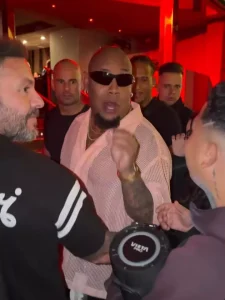
Let’s look at the first step: how to create videos using Google Gemini—specifically, how you can easily generate three of them. Here is what you need to do first. You will need a reference video; save the one I have shared here. Then, open Google Gemini and select the video model. This ensures the system selects the perfect video style; simply add your photo, paste the prompt, and hit generate. It will create an excellent video for you in just a few seconds.
How do you create a video using Google Flow?
Creating one is very easy these days. First, open the website and sign up to start a new project. Click the plus (+) icon and upload a reference photo. You will also need a specific video—which you can find within the article—so make sure to save it. Next, select both the video and the photo, then paste your prompt and hit generate. It will produce an excellent video exactly the way you want it.
Conclusion
We hope you understand the editing process and its entire process. I’ve covered all the details. Just follow them and create, and you’ll love the results.